

Installation guide
How to install HubSpot MCP Server
In Claude Desktop, ChatGPT, Cursor and Claude Code, with what to check before you start and the first prompts to run.
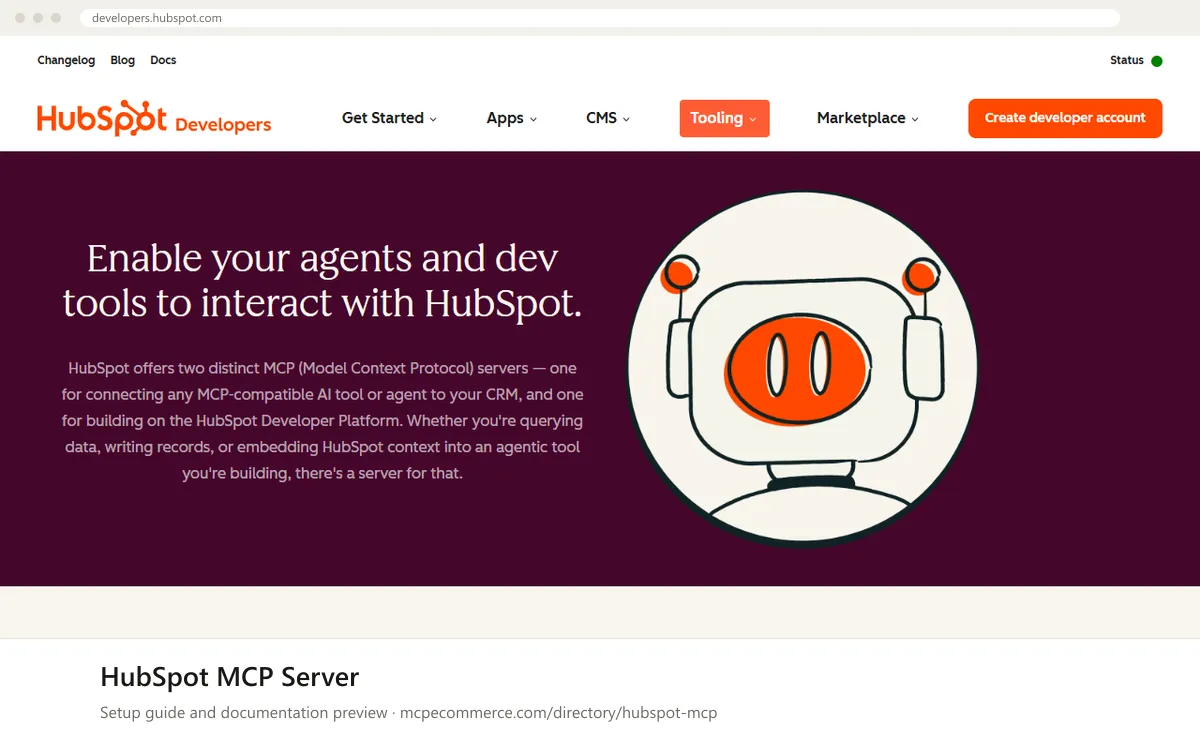
HubSpot runs this MCP server for you, so there is nothing to install on your computer. You add the server to your AI client by its URL, then sign in to HubSpot and approve the permissions it asks for. HubSpot's page says the server gives an AI tool read and write access to CRM data such as contacts, deals and engagements. It also says the setup requires the latest Developer Platform version. The exact server address is not on the overview page, so copy it from HubSpot's MCP documentation.
This page covers the remote CRM server only. HubSpot also offers a separate local Developer MCP server for building on its developer platform, which is not covered here. A HubSpot admin, or someone who can approve app access and see the CRM data involved, should do the setup. Use your own named HubSpot account, not a shared login. Start with the narrowest access you can, and confirm your privacy basis first, because CRM data is personal data.
Before you start
- A HubSpot account with permission to approve app connections and to view the CRM objects you want the assistant to use.
- The current server address and required permissions, copied from HubSpot's MCP documentation at developers.hubspot.com/mcp.
- A HubSpot Developer account and the latest Developer Platform version, which HubSpot says both of its MCP servers require.
- An AI client that supports remote MCP servers, such as Claude Desktop, ChatGPT, Cursor or Claude Code.
- A decision on which objects and users the assistant may see, and a confirmed privacy basis for using CRM data with an AI tool.
- How it runs
- Remote, added by URL
- Access
- Varies by tool
- Server address
- Copy it from the vendor documentation
 HubSpot MCP Server in Claude Desktop
- Open HubSpot's MCP documentation and copy the current server address for the remote CRM server. The docs page we reviewed does not cover Claude Desktop specifically.
- In Claude Desktop, open the settings area for connectors or integrations and choose the option to add a custom remote MCP server.
- Paste the server address and give the connection a clear name, such as HubSpot CRM.
- Start the sign-in when prompted, log in to HubSpot with your own account, and read the permissions before approving.
- Approve only what you need. Prefer read access first, because HubSpot says the server can also write records.
- Start a new chat and check that the HubSpot tools are listed as available.
 HubSpot MCP Server in ChatGPT
- Copy the current server address for the remote CRM server from HubSpot's MCP documentation. The docs page we reviewed does not cover ChatGPT specifically.
- In ChatGPT, open the settings area for connectors or apps. Custom MCP connectors may depend on your plan and workspace settings, so ask your workspace admin if the option is missing.
- Choose the option to add a custom connector or remote MCP server and paste the server address.
- Complete the HubSpot sign-in with your own account and review the permissions requested before approving.
- Enable the connector in a new conversation, then run one of the read-only test prompts below.
 HubSpot MCP Server in Cursor
- Copy the current server address for the remote CRM server from HubSpot's MCP documentation. The docs page we reviewed does not cover Cursor specifically.
- In Cursor, open the settings area for MCP servers and choose to add a new server.
- Add it as a remote server by URL, using the address from HubSpot's documentation. Take any exact config format from Cursor's own MCP documentation.
- When Cursor prompts you, sign in to HubSpot with your own account and review the permissions before approving.
- Check that the server shows as connected and its tools are listed, then test with a read-only prompt.
HubSpot MCP Server in Claude Code
- Copy the current server address for the remote CRM server from HubSpot's MCP documentation. The docs page we reviewed does not cover Claude Code specifically.
- Use Claude Code's standard way of adding a remote MCP server by URL. Take the exact command and options from Claude Code's own documentation, not from this guide.
- Add the HubSpot server address and give the server a clear name.
- Start a Claude Code session, run the client's MCP status view if it has one, and follow the prompt to sign in to HubSpot.
- Review the requested permissions before approving, and prefer read access first.
- Run a read-only prompt to confirm the connection works.
Check that it works
Start with questions that only read data. If these answer from your real account, the connection is good.
- Summarise the five most recently created deals in HubSpot, with name, stage and owner. Do not change anything.
- List the HubSpot contact properties you can read, and tell me which actions you are able to take. Do not make any changes.
- How many open deals are in each pipeline stage? Show the counts only, with no personal details.
Troubleshooting
+The sign-in keeps looping or never finishes. What should I check?
Confirm you are logging in to the correct HubSpot account and that you are allowed to approve app connections. Finish the sign-in in the same browser profile you started it in, and disable pop-up blockers. If it still loops, remove the server from your client, add it again, and check HubSpot's documentation for the current address.
+The server connects but I do not see the HubSpot tools or some CRM data. Why?
Access varies by tool, and what you see depends on the permissions you approved and your HubSpot user rights. Reconnect and review the permission screen. Ask a HubSpot admin whether your user can view those objects. Also start a new chat, because some clients only load tools when a conversation begins.
+My client does not offer a way to add a remote MCP server. What now?
Remote server support differs by client, plan and workspace settings. Check that the app is up to date and look in its connectors, integrations or MCP settings. On managed workspaces an admin may need to allow custom connectors. HubSpot's page does not list per-client steps, so use that client's own documentation for how to add a server by URL.
Written Oct 13, 2026 from the vendor documentation. Exact menus, addresses and commands change; the official documentation is the source of truth.