

Installation guide
How to install Klaviyo MCP Server
In Claude Desktop, ChatGPT, Cursor and Claude Code, with what to check before you start and the first prompts to run.
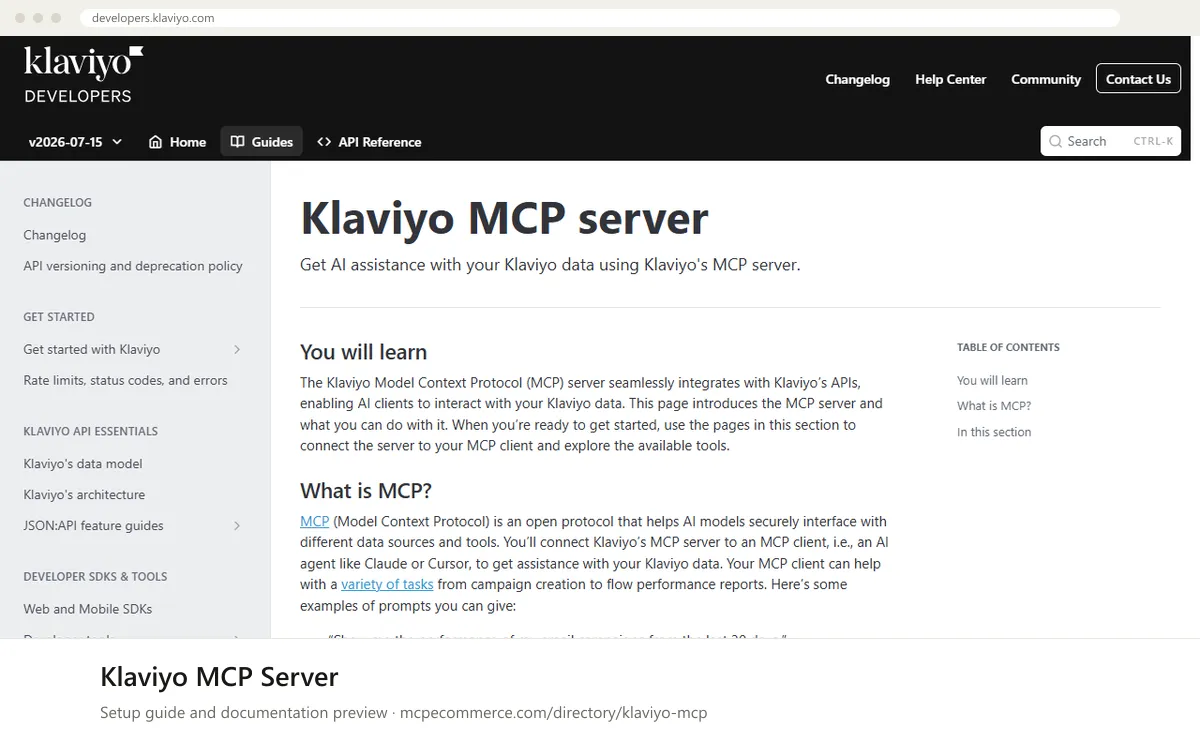
Connecting the Klaviyo MCP server lets an AI assistant read your Klaviyo data, such as campaigns, flows, profiles and reporting. Klaviyo's documentation describes a remote-hosted server, which it recommends, and a local server. Authentication uses a Klaviyo private API key limited to the scopes you choose. The overview page does not list the server address or the exact settings, so you will copy those from Klaviyo's "Connect to the MCP server" page.
A Klaviyo account admin, or someone they trust, should do this, using a key created in the account the assistant will work with. Create a dedicated key for the assistant instead of reusing one from another integration. Start with read-only scopes so the assistant can report but not change anything. Add write scopes later only for specific tasks that someone is supervising.
Before you start
- A Klaviyo account where you have permission to create private API keys.
- A private API key with read-only scopes to start. Add write scopes later only for supervised tasks.
- Klaviyo's "Connect to the MCP server" page open, to copy the exact server address, authentication method and any query parameters or environment variables.
- An AI client that supports MCP servers, such as Claude or Cursor, which the docs name as examples.
- For the local server option, the software and runtime that the Klaviyo docs list for it.
- How it runs
- Remote or local
- Access
- Varies by tool
- Server address
- Copy it from the vendor documentation
 Klaviyo MCP Server in Claude Desktop
- Open Klaviyo's "Connect to the MCP server" page and note the remote server address and how it authenticates. Use the remote-hosted option unless you have a reason to run the local one.
- In Klaviyo, create a private API key with read-only scopes and copy it somewhere safe. Do not paste it into chats or shared documents.
- In Claude Desktop, open the settings area for connectors or integrations, or the MCP server configuration, and choose to add a server. The Klaviyo docs name Claude as a supported kind of client but this overview does not give Claude-specific steps.
- Enter the server address and supply the API key in the way the Klaviyo page describes. Take exact values and key names from the vendor documentation.
- Save, restart Claude Desktop if it asks you to, and check that the Klaviyo server shows as connected with its tools listed.
 Klaviyo MCP Server in ChatGPT
- Open Klaviyo's "Connect to the MCP server" page and note the remote server address and the authentication method. The documentation text we reviewed does not mention ChatGPT, so these steps are generic.
- In Klaviyo, create a private API key with read-only scopes. Check on the Klaviyo page whether and how a key can be supplied to a remote server.
- In ChatGPT, open the settings area for connectors or integrations. Custom MCP connectors may need developer mode, and availability depends on your plan and workspace role.
- Add a new connector using the remote server URL from the Klaviyo documentation, and complete the authentication step the page describes.
- Confirm the connector appears in the list, then enable it in a new chat. If your plan does not allow custom connectors, ask your workspace admin.
 Klaviyo MCP Server in Cursor
- Open Klaviyo's "Connect to the MCP server" page and note the server address, authentication method, and any query parameters or environment variables.
- In Klaviyo, create a private API key with read-only scopes and copy it.
- In Cursor, open the settings area for MCP servers, or the MCP configuration file, and add a new server. The Klaviyo docs name Cursor as an example client, but this overview does not give Cursor-specific steps.
- For the remote server, enter the address from the Klaviyo page and supply the key as described there. Use the vendor's exact values for any header, parameter or variable names.
- Save, then check that the Klaviyo server shows as enabled and lists its tools. Reload Cursor if the tools do not appear.
Klaviyo MCP Server in Claude Code
- Open Klaviyo's "Connect to the MCP server" page and copy the exact server address and authentication details for your setup. The documentation we reviewed does not include Claude Code commands.
- In Klaviyo, create a private API key with read-only scopes.
- Add the server using Claude Code's standard way of adding a remote MCP server by URL, or a local server by command, in its MCP configuration. Take the exact command, flags and variable names from Klaviyo's page.
- Provide the API key the way the vendor documents, and keep it out of files that are committed to source control.
- Start a new session and run Claude Code's command that lists MCP servers. Confirm Klaviyo is connected and exposes its tools.
Check that it works
Start with questions that only read data. If these answer from your real account, the connection is good.
- Show me the performance of my email campaigns from the last 30 days.
- Which flows are performing the best in terms of conversions?
- List the tools you can use from the Klaviyo server, and tell me which of them can change data.
Troubleshooting
+Why does the client not list the Klaviyo server after I add it?
Check that the server address was copied exactly from Klaviyo's Connect page, with no extra spaces or missing parts. Then restart or reload the client, since many only read MCP settings at startup. If you chose the local option, confirm the prerequisites in the Klaviyo docs are installed. Check that your client version supports MCP.
+Why does authentication fail or keep asking me to sign in?
The private API key may have been copied incorrectly, revoked, or created in a different Klaviyo account than the one you expect. Create a new key, paste it again, and confirm the authentication method on Klaviyo's Connect page matches how you entered it. If a sign-in prompt keeps repeating, remove the server and add it again.
+Why are some tools missing or returning permission errors?
The tools available depend on the scopes granted to your API key, and some tools are only offered on the remote or local server. Klaviyo's Available tools page shows which are read-only. If a read task fails, check that the key includes the matching read scope. Add write scopes only for a specific supervised task.
Written Oct 13, 2026 from the vendor documentation. Exact menus, addresses and commands change; the official documentation is the source of truth.