

Installation guide
How to install Meta ads AI connectors (MCP)
In Claude Desktop, ChatGPT, Cursor and Claude Code, with what to check before you start and the first prompts to run.
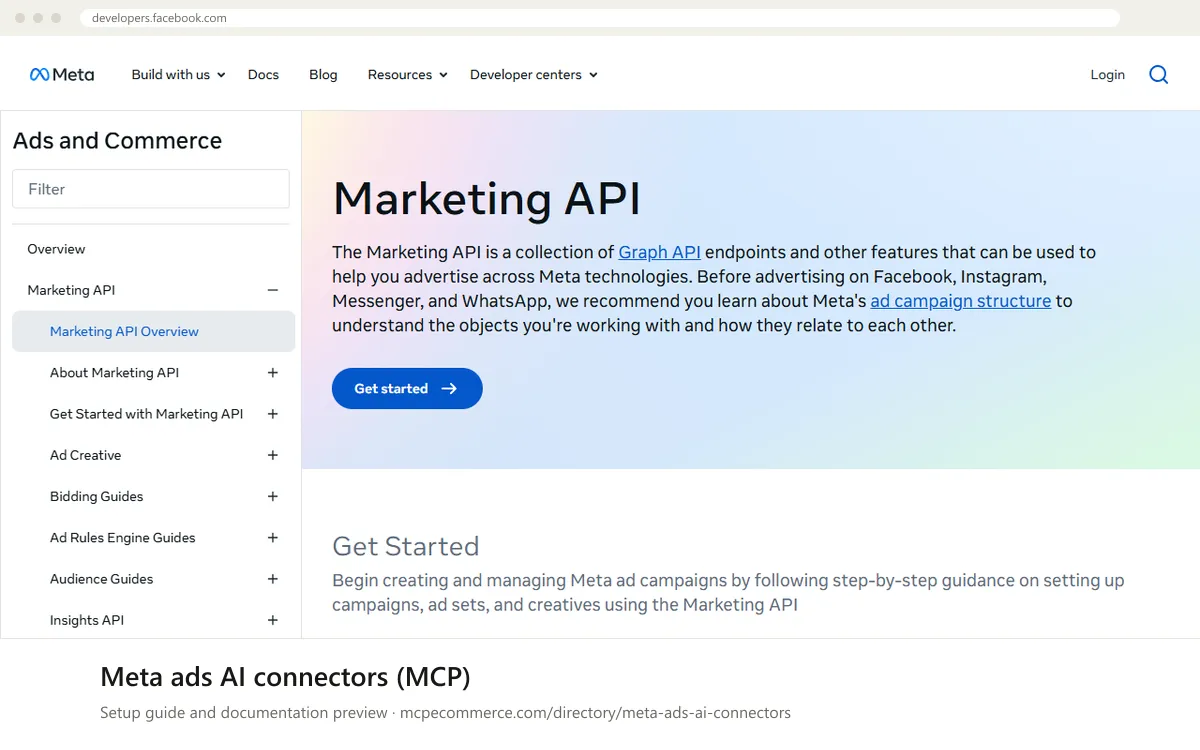
Meta's ads AI connectors are a hosted (remote) MCP server. You do not install anything on your computer for the server itself. You add the server address Meta publishes to your AI tool, then sign in with a Meta account and approve the permissions. The product is in open beta, and the page we reviewed lists "Ads AI Connectors" in its navigation but does not state the server address, so take the exact address and requirements from Meta's current documentation or Business Help Center.
This is best done by whoever manages your Meta advertising, usually a Business Manager admin or the person who runs Ads Manager, using the Meta account that already has access to the ad account. Because the connector can also write, start with one ad account and reporting questions only. Have an agency developer or a second person review any change before you approve it.
Before you start
- A Meta account with access to the ad account you want to connect, ideally through Business Manager.
- The current server address and terms from Meta's Ads AI Connectors documentation or Business Help Center.
- An AI tool that supports remote MCP servers (Claude, ChatGPT, Cursor or Claude Code) on a plan that allows custom connectors.
- Permission from the budget owner before any write access is used, since changes can affect live spend.
- The name or ID of one ad account to start with.
- How it runs
- Remote, added by URL
- Access
- Read and write
- Server address
- Copy it from the vendor documentation
 Meta ads AI connectors (MCP) in Claude Desktop
- Open Meta's Ads AI Connectors documentation or Business Help Center page and copy the current server address. Note any stated requirements.
- In Claude Desktop, open the connectors or integrations settings. Meta's page we reviewed does not cover Claude Desktop, so this is the standard way to add a remote server.
- Choose to add a custom connector and paste the address from Meta.
- Start the sign-in when prompted, log in with the Meta account that has access to the ad account, and review the permissions before approving.
- Select a single ad account to begin with and keep the first session to reporting questions only.
- Run the verify prompts below, then decide whether to allow any write actions.
 Meta ads AI connectors (MCP) in ChatGPT
- Open Meta's Ads AI Connectors documentation or Business Help Center page and copy the current server address. Confirm any requirements.
- In ChatGPT, open the settings area for connectors or apps. Meta's page we reviewed does not cover ChatGPT, and custom connectors may need developer mode or a specific plan, so check OpenAI's current guidance.
- Add a custom connector (a remote MCP server) and paste the address from Meta.
- Complete the Meta sign-in with the account that has access to the ad account and review the permissions before approving.
- Pick one ad account and ask for reporting only at first.
- Run the verify prompts below. Review every proposed action before approving it.
 Meta ads AI connectors (MCP) in Cursor
- Open Meta's Ads AI Connectors documentation or Business Help Center page and copy the current server address.
- In Cursor, open the settings area for MCP servers. Meta's page we reviewed does not cover Cursor, so this is Cursor's standard way to add a server.
- Add a new remote MCP server by URL and paste the address from Meta. Take any extra settings from Meta's documentation.
- Start the sign-in when Cursor prompts, log in with the Meta account that has access to the ad account, and approve only the permissions you need.
- Confirm the server shows as connected and lists its tools.
- Run the verify prompts below with one ad account and reporting only.
Meta ads AI connectors (MCP) in Claude Code
- Open Meta's Ads AI Connectors documentation or Business Help Center page and copy the current server address and requirements.
- Meta's page we reviewed does not cover Claude Code. Use Claude Code's standard way of adding a remote MCP server by URL, and check Anthropic's documentation for the exact command.
- Add the server using the address from Meta, and choose a scope that suits you, such as just your own user.
- Start the sign-in flow for the server, log in with the Meta account that has access to the ad account, and review the permissions before approving.
- Check that the server is listed as connected within Claude Code.
- Run the verify prompts below with one ad account and reporting only.
Check that it works
Start with questions that only read data. If these answer from your real account, the connection is good.
- List the ad accounts I can access through this connector. Do not change anything.
- For my chosen ad account, show campaign spend, impressions and results for the last 7 days as a table. Read only.
- Which active campaigns had the highest cost per result last month? Summarize only, and do not suggest or make any changes yet.
Troubleshooting
+The sign-in keeps looping or fails. What should I check?
Confirm you are logged in to the Meta account that actually has access to the ad account, and that your browser is not blocking pop-ups or third-party cookies. Try a private window, then remove and re-add the connector. If it still fails, check Meta's Business Help Center, since the product is in beta and requirements may have changed.
+The connector is added but I see no ad accounts or tools. Why?
Usually the signed-in account lacks access to the ad account, or the permissions were not fully approved. Check your role in Business Manager, then reconnect and approve the permissions again. Also confirm the address matches the current one in Meta's documentation, and that your AI tool's plan allows custom connectors.
+Can I stop it changing live campaigns by accident?
The connector can write, which may change live spend. Start with reporting questions only, name one ad account, and tell the assistant not to make changes. Keep your tool's approval prompts on, read every proposed action before approving, and ask the budget owner to sign off before any supervised write task.
Written Oct 13, 2026 from the vendor documentation. Exact menus, addresses and commands change; the official documentation is the source of truth.