

Installation guide
How to install Shopify Storefront MCP
In Claude Desktop, ChatGPT, Cursor and Claude Code, with what to check before you start and the first prompts to run.
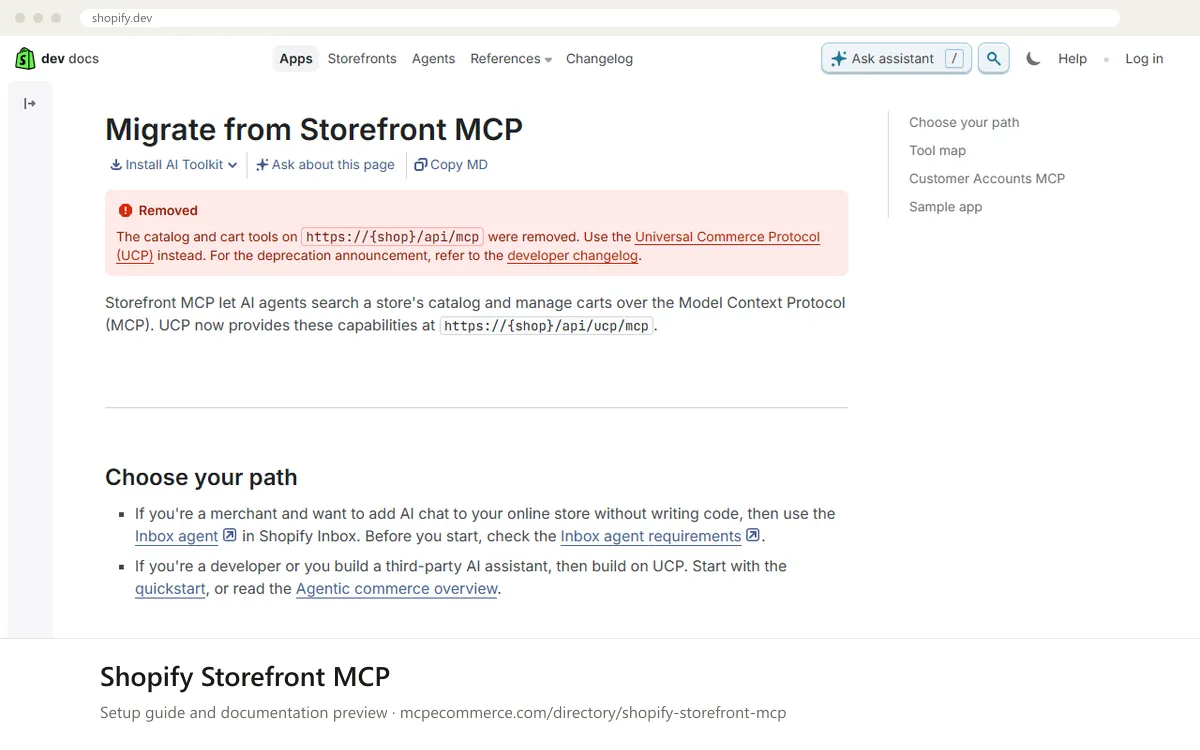
Shopify Storefront MCP is hosted by Shopify and added by URL, with no local install. Each store has its own address, built from the shop's domain. Important: Shopify's documentation now marks the catalog and cart tools on the original /api/mcp endpoint as removed. Those capabilities moved to the Universal Commerce Protocol (UCP) at /api/ucp/mcp. The policy and FAQ search tool is unchanged on /api/mcp.
This is best done by whoever runs the store's e-commerce setup, with a developer or agency contact if you want catalog or cart access through UCP. The docs say UCP requests must include an agent profile and that Checkout MCP requests must be authenticated or signed, so a plain chat client may not reach every tool. Merchants who only want AI chat on their own store are pointed to the Inbox agent in Shopify Inbox instead.
Before you start
- The exact domain of the store you want to connect, to replace the shop placeholder in the endpoint address.
- Access to Shopify's current Storefront MCP and UCP documentation, to confirm which tools and requirements apply today.
- An MCP-capable assistant that can add a remote server by URL. Check whether it can send an agent profile if you need UCP catalog or cart tools.
- A developer or agency contact if you plan to use UCP, since the docs describe changes that affect code, such as agent profiles and signed Checkout MCP requests.
- A reviewed catalog and written store policies, because the assistant answers from what the store publishes.
- How it runs
- Remote, added by URL
- Access
- Varies by tool
- Server address
- https://{shop}/api/mcp
 Shopify Storefront MCP in Claude Desktop
- Open Shopify's Storefront MCP page and the UCP quickstart linked from it, and note which tools you need. The docs do not cover Claude Desktop, so the steps below use its standard way of adding a remote server.
- Replace the shop placeholder in the endpoint with your store's domain. Use the /api/mcp address for policy and FAQ search, or the UCP address given in the docs for catalog and cart.
- Open Claude Desktop settings and go to the connectors or integrations area, where remote MCP servers are added by URL.
- Add a custom connector, give it a clear name such as your store name, and paste the store-specific URL.
- Save it and enable the connector in a new conversation.
- Ask a policy question first, then check which tools the connector lists. If catalog or cart tools are missing or fail, check the UCP requirements in the docs.
 Shopify Storefront MCP in ChatGPT
- Read Shopify's Storefront MCP page and note which tools you need. The docs do not cover ChatGPT, so the steps below use its standard way of adding a remote server.
- Build your store's URL by replacing the shop placeholder in the endpoint with your domain. Take the UCP address for catalog and cart from the vendor docs.
- Open ChatGPT settings and find the connectors or developer mode area. Availability depends on your plan and workspace settings, so ask your workspace admin if it is missing.
- Add a new custom connector, name it after your store and paste the URL.
- Save it, then enable it in a new chat.
- Ask a read-only policy question and confirm the tools appear. If UCP tools fail, the likely cause is the agent profile or authentication requirement described in the docs.
 Shopify Storefront MCP in Cursor
- Read Shopify's Storefront MCP page and the UCP quickstart. The docs do not cover Cursor, so the steps below use its standard way of adding a remote server.
- Replace the shop placeholder in the endpoint with your store's domain. Take the UCP address from the vendor docs if you need catalog or cart.
- Open Cursor settings and go to the MCP section, where servers are added in the MCP configuration.
- Add a remote server entry with your store name and the URL. Take any exact field names from Cursor's own documentation, not from guesswork.
- Save and confirm the server shows as connected with its tools listed.
- Start with a read-only question about shipping or returns. Developers building on UCP should follow Shopify's quickstart for agent profile handling.
Shopify Storefront MCP in Claude Code
- Read Shopify's Storefront MCP page and the UCP quickstart. The docs do not cover Claude Code, so the steps below use its standard way of adding a remote server.
- Replace the shop placeholder in the endpoint with your store's domain. Use the UCP address from the vendor docs for catalog and cart.
- Use Claude Code's standard command for adding a remote MCP server by URL. Take the exact syntax from Claude Code's own documentation.
- Give the server a clear name, point it at the store-specific URL and choose the scope that suits you, such as just your project.
- Start a session and use the MCP management view to confirm the server is listed with its tools.
- Run a read-only policy question first. For UCP, include the agent profile the docs require, and treat cart changes as supervised work only.
Check that it works
Start with questions that only read data. If these answer from your real account, the connection is good.
- What is this store's return policy and how long do customers have to send items back?
- What shipping options and costs does this store describe, and which countries does it ship to?
- Search the catalog for a product type we sell and summarize the first results with price and availability. Do not create or change a cart.
Troubleshooting
+Why do catalog or cart tools fail or not appear on the /api/mcp address?
Shopify's documentation says the catalog and cart tools on /api/mcp were removed and replaced by UCP at /api/ucp/mcp. Only the policy and FAQ search tool is described as unchanged on /api/mcp. Check the migration page and the UCP quickstart, then point your client at the address the docs give.
+Why does the UCP endpoint reject my requests?
The docs say every request to the UCP endpoint must include an agent profile, and Checkout MCP requests must be authenticated or signed. Many general chat clients do not send these by default. Ask a developer to follow the UCP quickstart, or use a client that supports the requirements described by Shopify.
+The assistant connects but gives wrong or vague answers about my store. What should I check?
Answers come from your published catalog and policies. Review product titles, descriptions, variants, prices and stock, and make sure shipping, returns and payment policies are clear on the store. Also confirm the URL uses the right shop domain. Retest with the same question after fixing the data. Keep cart actions supervised, since each cart update replaces the whole cart.
Written Oct 13, 2026 from the vendor documentation. Exact menus, addresses and commands change; the official documentation is the source of truth.