
Installation guide
How to install Angeo MCP Server module
In Claude, ChatGPT, Gemini, Microsoft Copilot, Perplexity, Cursor and Claude Code, with what to check before you start and the first prompts to run.
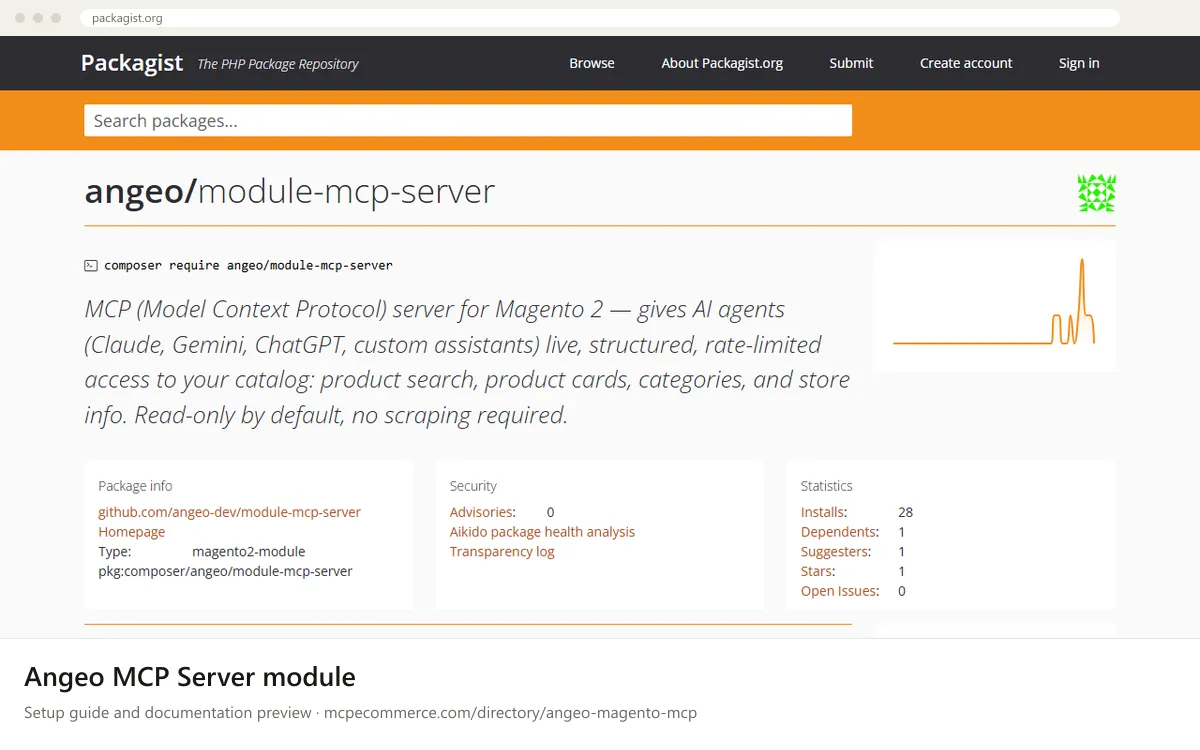
This is a community, open-source Magento 2 / Adobe Commerce module, not a hosted service. You install it with Composer on your own store, and it serves a read-only MCP endpoint at the `/mcp` path of your store domain. By default it needs no sign-in and shows only what an anonymous shopper sees. You can optionally require a bearer token issued through a Magento integration.
Have a Magento developer or sysadmin with shell access to the store do the install, ideally on staging first. Whoever connects the AI clients needs the store's public `/mcp` URL, plus the integration token if you turn on `Require Bearer Token`. The package docs only cover Claude Desktop and Claude Code, so the other clients below use their standard remote-server flow.
Before you start
- Magento Open Source or Adobe Commerce 2.4.6 or later on PHP 8.1 to 8.5, with shell access and Composer.
- Permission to run
bin/magentocommands and to edit Varnish or LiteSpeed cache rules if you use them. - A staging store to test on first. The vendor docs say to check maintenance activity, Magento version support and the
READMEbefore using a community module in production. - A publicly reachable
HTTPSstore URL, so the endpoint ishttps://<your-store-domain>/mcp. - Optional: Magento admin access to
System > Extensions > Integrationsif you want to require a bearer token.
- How it runs
- Local, runs on your machine
- Access
- Read-only
- Server address
- Copy it from the vendor documentation
 Angeo MCP Server module in Claude
- Install the module on the store first:
composer require angeo/module-mcp-server, thenbin/magento module:enable Angeo_McpServer,bin/magento setup:upgradeandbin/magento cache:flush. - Make sure
/mcpbypasses Varnish, LiteSpeed or any other full-page cache, using the rules in the vendorREADME. - Add the server to your
.mcp.jsonas shown in the snippet, replacing the example host with your store domain. The vendor docs list this file for Claude Desktop and Claude Code. - Restart Claude Desktop and check that the server and its tools (
search_products,get_product,list_categories,get_store_info) are listed. - Claude.ai web connectors are a different case. The docs say the store's own
/mcphas no OAuth and cannot be added to Claude directly. You would need an MCP provider that puts an authorization layer in front of it. Take the setup details from that provider. - Start with read-only prompts, such as those in the verify list.
{
"mcpServers": {
"my-store": {
"type": "http",
"url": "https://your-store.example/mcp"
}
}
} Angeo MCP Server module in ChatGPT
- Install and verify the module on the store first (
composer require angeo/module-mcp-server, then enable, upgrade and flush the cache as in the vendorREADME). - The vendor docs do not cover ChatGPT. Use ChatGPT's standard route for custom MCP connectors: enable Developer mode in the settings and add a connector by URL.
- Enter your store's public endpoint,
https://<your-store-domain>/mcp, as the server URL. - The docs say this endpoint has no OAuth. If ChatGPT requires an authorization flow, you would need a provider that fronts the endpoint with one. Take those details from that provider.
- Confirm the four read-only tools are listed, then try the verify prompts.
 Angeo MCP Server module in Gemini
- Install and verify the module on the store first (
composer require angeo/module-mcp-server, then enable, upgrade and flush the cache). - The vendor docs do not cover Gemini. For Gemini CLI, the standard route is to add an entry under
mcpServersin the Gemini settings file. - Point the entry at
https://<your-store-domain>/mcp. Take the exact key for a remoteHTTPserver from the Gemini CLI documentation. - If you enabled
Require Bearer Token, sendAuthorization: Bearer <token>. Take the header setting name from the Gemini CLI documentation. - Restart Gemini CLI, confirm the tools are listed, and run a read-only prompt.
 Angeo MCP Server module in Microsoft Copilot
- Install and verify the module on the store first (
composer require angeo/module-mcp-server, then enable, upgrade and flush the cache). - The vendor docs do not cover Copilot. For GitHub Copilot in VS Code, the standard route is to add a remote server entry to
.vscode/mcp.json. For Copilot Studio, add a custom MCP tool or connector by URL. - Use
https://<your-store-domain>/mcpas the server URL. - If you enabled
Require Bearer Token, add theAuthorization: Bearer <token>header using the client's header or credentials option. - Confirm the tools appear, then run a read-only prompt such as listing categories.
 Angeo MCP Server module in Perplexity
- Install and verify the module on the store first (
composer require angeo/module-mcp-server, then enable, upgrade and flush the cache). - The vendor docs do not cover Perplexity. Use the connectors area of the Perplexity desktop app and add a custom remote connector by URL.
- Enter
https://<your-store-domain>/mcpas the server URL. - The docs say the endpoint has no OAuth. If the app requires one, you would need a provider that fronts the endpoint with an authorization layer. Take those details from that provider.
- Confirm the tools are listed, then try the verify prompts.
 Angeo MCP Server module in Cursor
- Install and verify the module on the store first (
composer require angeo/module-mcp-server, then enable, upgrade and flush the cache). - The vendor docs do not cover Cursor, so use Cursor's standard MCP config. Open the MCP settings, or edit the MCP
JSONfile directly. - Add a server entry with the
urlset to your store's/mcpendpoint, as in the snippet. - If you enabled
Require Bearer Token, add anAuthorization: Bearer <token>header. Take the exact key from the Cursor documentation. - Reload Cursor, check that the server shows its four tools, and run a read-only prompt.
{
  "mcpServers": {
    "my-store": {
      "url": "https://your-store.example/mcp"
    }
  }
}
Angeo MCP Server module in Claude Code
- On the store, run
composer require angeo/module-mcp-server,bin/magento module:enable Angeo_McpServer,bin/magento setup:upgradeandbin/magento cache:flush. - Check the module from the store's shell with
bin/magento angeo:mcp:tools. - Make sure
/mcpbypasses Varnish, LiteSpeed or any other full-page cache. - On your own machine, add the server with the command in the snippet, using your store domain.
- Alternatively, put the
.mcp.jsonentry from the vendorREADMEin your project. It uses"type": "http"and"url". - If you enabled
Require Bearer Token, take the option for sending theAuthorizationheader from the Claude Code documentation. Then runclaude mcp listand try a read-only prompt.
claude mcp add --transport http my-store https://your-store.example/mcpCheck that it works
Start with questions that only read data. If these answer from your real account, the connection is good.
- Use get_store_info and tell me the store name, currency, locale and which countries it ships to.
- Use list_categories with depth 2 and show me the category tree with product counts.
- Use search_products to find 'mug' with a page size of 3, then show the SKU, price and stock for each result.
Troubleshooting
+The /mcp endpoint returns odd, stale or broken JSON. What is wrong?
A front cache is probably serving `/mcp`. The module sends `Cache-Control: no-store`, but Varnish or LiteSpeed set to ignore backend headers need an explicit rule. Use the `vcl_recv` pass rule for Varnish or the `.htaccess` rule for LiteSpeed from the vendor README, then test with the `curl` `tools/list` request.
+Claude.ai refuses to add my store's /mcp URL as a connector. Why?
The vendor docs say the store's own `/mcp` endpoint has no OAuth and cannot be added to Claude directly. Use the `.mcp.json` route with Claude Desktop or Claude Code instead. For Claude.ai, you would need an MCP provider that puts an authorization layer in front of the endpoint.
+The client connects but shows no tools, or calls fail with auth or rate errors. What should I check?
Run `bin/magento angeo:mcp:tools` to confirm the module is installed and enabled. Check that `Enable MCP Server` is Yes for the store view. If `Require Bearer Token` is Yes, the client must send `Authorization: Bearer <token>` from an active integration. The default rate limit is 60 requests per minute per IP.
Written Oct 13, 2026 from the vendor documentation. Exact menus, addresses and commands change; the official documentation is the source of truth.