
Installation guide
How to install Google Ads MCP Server
In Claude Desktop, ChatGPT, Cursor and Claude Code, with what to check before you start and the first prompts to run.
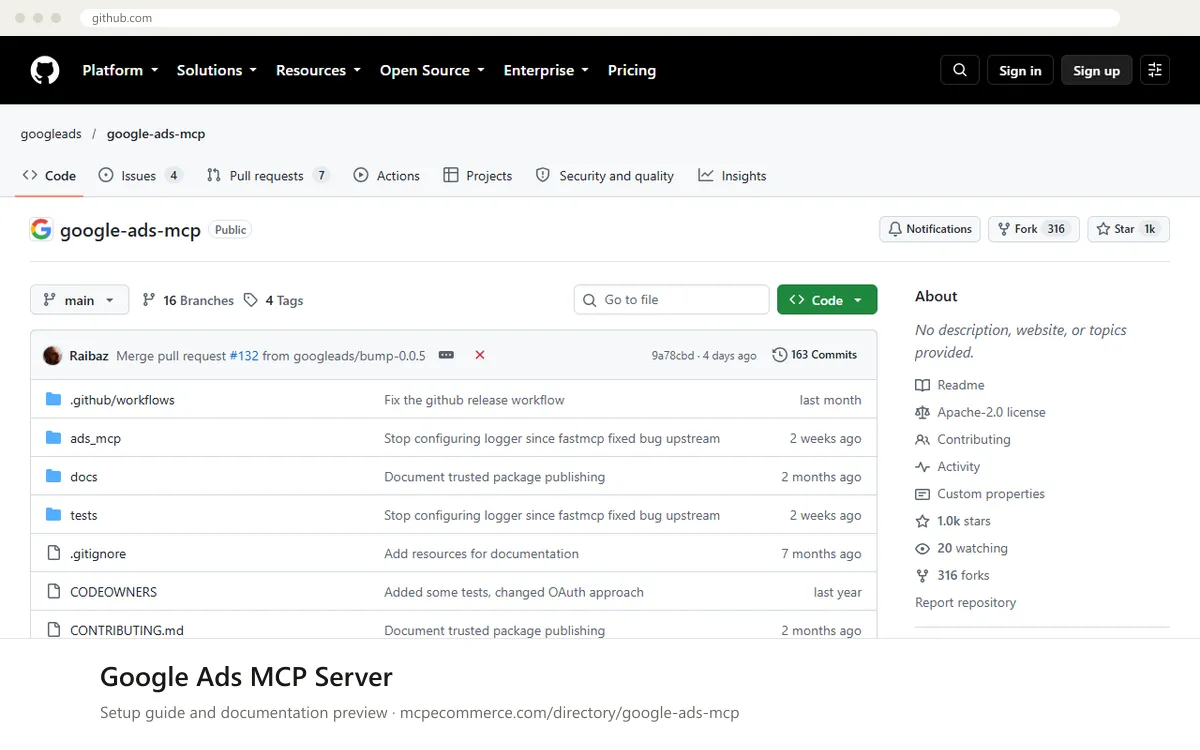
This is a local server, not a hosted one. You run Google's open-source Google Ads MCP Server on your own computer with pipx, and your AI tool starts it. It is read-only, so it reports on spend and performance but cannot change campaigns or budgets. Setup needs a Google Ads API developer token, the Google Ads API enabled in a Google Cloud project, and Google credentials (Application Default Credentials is the simplest route in the docs).
Have a technical person do this, ideally an agency developer or in-house marketing operations lead, using a Google account that already has access to the Google Ads accounts you want to report on. The developer token comes from a Google Ads manager account, so someone with admin rights there needs to be involved. Note that the server exposes your account data to whichever assistant you connect, so connect only tools your company approves.
Before you start
- A Google Ads API developer token, requested from a Google Ads manager account. The docs say it needs at least Explorer access to query production accounts.
- A Google Cloud project with the Google Ads API enabled.
- Google credentials for a user with access to your Google Ads accounts, including the Google Ads API scope. Application Default Credentials set up with the gcloud command is the documented option.
- pipx installed on the computer that will run the server, plus the customer ID of the account (and the manager account ID if you work through one).
- An AI tool that can start a local MCP server from a command, with permission from your team to share ad account data with it.
- How it runs
- Local, runs on your machine
- Access
- Read-only
- Server address
- Copy it from the vendor documentation
 Google Ads MCP Server in Claude Desktop
- The vendor docs do not cover Claude Desktop, so this uses the standard way of adding a local server. First finish the shared setup: install pipx, get your developer token, enable the Google Ads API in your Google Cloud project, and create Application Default Credentials. Note the credentials file path that gcloud prints.
- Open Claude Desktop settings and find the developer or MCP servers area, which opens the MCP configuration file.
- Add a server entry named google-ads-mcp that runs the command pipx with the arguments run, --spec, git+https://github.com/googleads/google-ads-mcp.git, google-ads-mcp. This is the pattern the docs show for other clients.
- In that entry's environment settings, set GOOGLE_APPLICATION_CREDENTIALS to your credentials file path, GOOGLE_ADS_DEVELOPER_TOKEN to your token, and GOOGLE_PROJECT_ID to your Google Cloud project ID. The docs also recommend setting GOOGLE_CLOUD_PROJECT.
- Save the file and fully restart Claude Desktop so it starts the server.
- Open a new chat, check that the Google Ads tools are listed, then run the read-only prompts below.
 Google Ads MCP Server in ChatGPT
- The vendor docs do not cover ChatGPT. ChatGPT normally adds MCP servers as remote connectors by URL, while this server runs on your own computer.
- The docs describe a local web-service mode (enabled with FastMCP OAuth proxy settings) that serves a Streamable HTTP endpoint on your machine. A localhost address is not reachable from ChatGPT's cloud service, and the docs do not describe a public deployment.
- If you still want ChatGPT, ask a developer to host the server at an address ChatGPT can reach, secured as your company requires. Take all deployment details from the vendor README, since this guide cannot confirm them.
- Once you have a reachable URL, open ChatGPT's connectors or integrations settings (availability depends on your plan and workspace admin settings) and add a custom MCP server using that URL.
- Complete the sign-in prompt, then run the read-only prompts below. If you want the simplest path, use Cursor or Claude Code instead.
 Google Ads MCP Server in Cursor
- The vendor docs do not cover Cursor, so this uses the standard local-server method. First finish the shared setup: pipx, developer token, Google Ads API enabled, and Application Default Credentials. Note the credentials file path.
- Open Cursor's settings and go to the MCP section, then choose to add a new server. This opens Cursor's MCP configuration.
- Add a server named google-ads-mcp that runs the command pipx with the arguments run, --spec, git+https://github.com/googleads/google-ads-mcp.git, google-ads-mcp.
- Add environment values: GOOGLE_APPLICATION_CREDENTIALS (your credentials file path), GOOGLE_ADS_DEVELOPER_TOKEN, and GOOGLE_PROJECT_ID. The docs also recommend GOOGLE_CLOUD_PROJECT.
- Save, then check the MCP settings page shows the server as enabled with its tools. Restart Cursor if it does not.
- Run the read-only prompts below in a new chat.
Google Ads MCP Server in Claude Code
- The vendor docs do not cover Claude Code, so this uses its standard way of adding a local server. First finish the shared setup: pipx, developer token, Google Ads API enabled, and Application Default Credentials. Note the credentials file path.
- Use Claude Code's MCP server management (its add-server option or its MCP configuration file) to add a local, command-based server named google-ads-mcp. Check Claude Code's own documentation for the exact syntax.
- Set the command to pipx with the arguments run, --spec, git+https://github.com/googleads/google-ads-mcp.git, google-ads-mcp.
- Provide the environment values GOOGLE_APPLICATION_CREDENTIALS (your credentials file path), GOOGLE_ADS_DEVELOPER_TOKEN, and GOOGLE_PROJECT_ID. The docs also recommend GOOGLE_CLOUD_PROJECT.
- Avoid storing the developer token in a configuration file that is committed to a shared repository.
- Start a new session, confirm the server is listed as connected, then run the read-only prompts below.
Check that it works
Start with questions that only read data. If these answer from your real account, the connection is good.
- List the Google Ads accounts these credentials can access.
- For customer ID [your customer ID], show campaign names and total spend for the last 7 days. Do not change anything.
- Which fields are available when reporting on the campaign resource?
Troubleshooting
+Why do I see the error that the developer token is only approved for use with test accounts?
Your developer token does not yet have access to production accounts. The docs say it needs at least Explorer access. New tokens may be upgraded automatically, otherwise you can apply through the API Center in Google Ads. Check the access levels documentation from Google for how to request the level you need, then try again.
+Why does the server not appear, or fail to start, in my AI tool?
Check that pipx is installed and runnable from the tool, since the tool launches the server with it. Confirm the credentials file path is correct and the environment values are set. The docs also say the server will not start if a custom tools configuration file is missing or invalid. Restart the tool after editing its MCP settings.
+Why are queries returning permission errors or no accounts?
The credentials must belong to a user with access to the Google Ads accounts and include the Google Ads API scope. Confirm the Google Ads API is enabled in your Google Cloud project. If you work through a manager account, provide its ID along with the customer ID. Start by asking the assistant to list accessible customers.
Written Oct 13, 2026 from the vendor documentation. Exact menus, addresses and commands change; the official documentation is the source of truth.