Installation guide
How to install Gorgias MCP
In Claude Desktop, ChatGPT, Cursor and Claude Code, with what to check before you start and the first prompts to run.
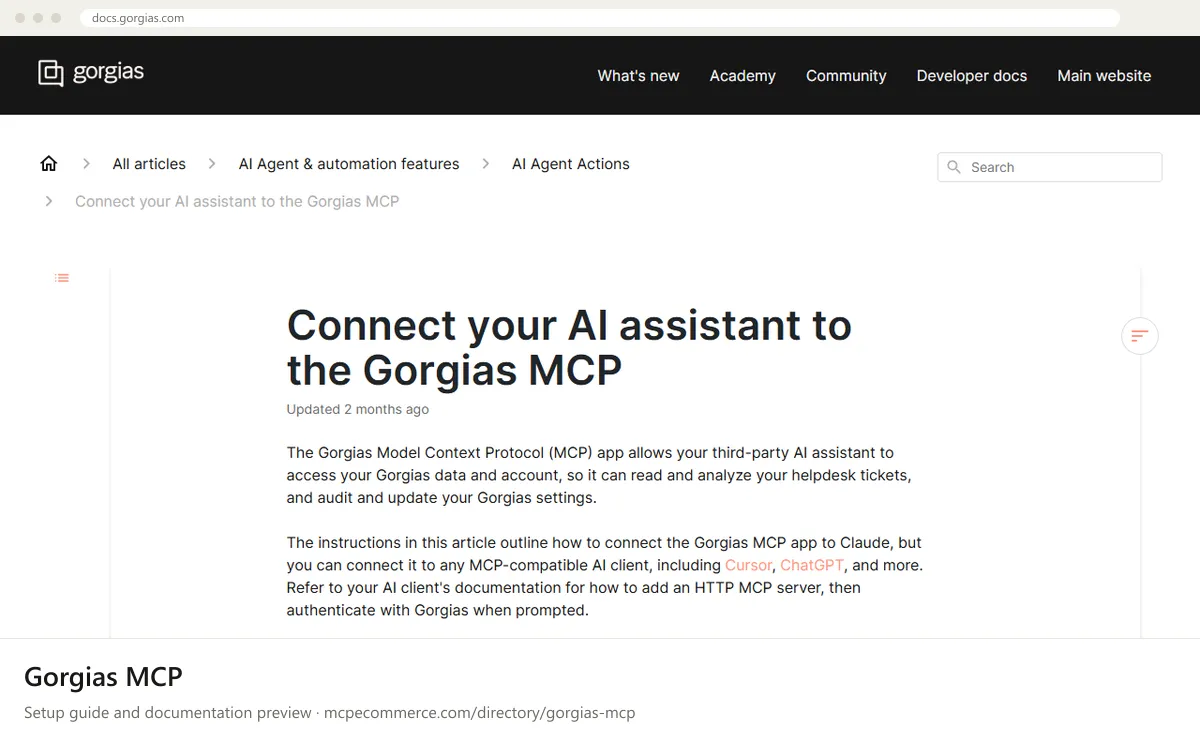
Gorgias MCP is hosted by Gorgias, so nothing is installed on your computer beyond your AI assistant. You add the vendor's server URL to your assistant, then sign in through the browser by entering your Gorgias subdomain and authorizing access. There is no API key in the documentation. The server is in beta and available on all Helpdesk plans.
Anyone can install it, but what the assistant can do depends on the Gorgias role of the person who connects. Start with a support lead or helpdesk admin using their own Gorgias login, so you can review what is shared. On Claude Team or Enterprise, an organization Owner must add the connector first. Use read-only questions at first and allow changes only for supervised tasks.
Before you start
- Your Gorgias subdomain, which is the your-brand part of your-brand.gorgias.com.
- A Gorgias login whose role matches what you want the assistant to do, since actions follow that role.
- An account with an MCP-compatible AI assistant such as Claude, ChatGPT or Cursor. For Claude Desktop, the app must be installed and signed in.
- On Claude Team or Enterprise, an Owner of the organization to add the connector first.
- For Claude Code, a terminal app on your computer.
- How it runs
- Remote, added by URL
- Access
- Read and write
- Server address
- https://mcp.gorgias.com/mcp
 Gorgias MCP in Claude Desktop
- Open the Claude desktop app and select Customize, then click Connectors. On Free, Pro or Max, click + Add and choose Add custom connector.
- On Team or Enterprise, an Owner must instead click their name in the bottom-left corner, select the organization, open Organization settings, click Connectors, click Add, hover over Custom and select Web.
- In the Name field enter Gorgias connector. In the Remote MCP server URL field enter https://mcp.gorgias.com/mcp and click Add.
- Click Connect. You are sent to the browser. Enter your Gorgias subdomain, click Continue, then click Allow Access.
- Sign into Gorgias if prompted. If you already have an active Gorgias session in the browser, you will not be asked. Review the data the MCP can access, then click Authorize.
- Click Open desktop app to return to Claude. Team or Enterprise members then open Customize, Connectors, find Gorgias connector, click Connect and sign in with their Gorgias credentials.
- Run a read-only prompt from the test section below before asking for any change.
 Gorgias MCP in ChatGPT
- The Gorgias documentation lists ChatGPT as a compatible client but gives no ChatGPT steps. Check OpenAI's documentation for how your plan adds a remote MCP server.
- In ChatGPT, open the settings area for connectors or integrations. Availability depends on your plan and workspace settings, so you may need a workspace admin to enable custom connectors.
- Add a new custom connector or remote MCP server and give it a name such as Gorgias connector.
- Enter the server URL https://mcp.gorgias.com/mcp when asked for the MCP server address.
- Start the sign-in when ChatGPT prompts you. In the browser, enter your Gorgias subdomain, click Allow Access, sign into Gorgias if asked, review the data shown and click Authorize.
- Return to ChatGPT, enable the connector for a chat, and try a read-only question first.
 Gorgias MCP in Cursor
- The Gorgias documentation lists Cursor as a compatible client but gives no Cursor steps. Check Cursor's documentation for how to add an HTTP MCP server.
- Open Cursor's settings and find the MCP section, where you add servers to its MCP configuration.
- Add a new server of the remote HTTP type, name it gorgias, and set its URL to https://mcp.gorgias.com/mcp. Take the exact configuration format from Cursor's documentation.
- Save the configuration and check that Cursor lists the Gorgias server. Start authentication when prompted.
- In the browser, enter your Gorgias subdomain, click Allow Access, sign into Gorgias if asked, review the data shown and click Authorize.
- Return to Cursor and try a read-only question before asking for changes.
Gorgias MCP in Claude Code
- Open a terminal app, type claude and press Enter to start Claude Code.
- Run this command: claude mcp add --transport http gorgias https://mcp.gorgias.com/mcp
- Press Enter to allow the command, then type exit and press Enter to quit Claude Code.
- Type claude and press Enter to relaunch. In the new session run /mcp and select gorgias.
- Select Authenticate to open a browser window, then enter your Gorgias subdomain and click Allow Access.
- Sign into Gorgias to finish, unless you already have an active session in the browser, then return to Claude Code.
- Ask a read-only question to confirm the connection.
Check that it works
Start with questions that only read data. If these answer from your real account, the connection is good.
- What are the top reasons customers contacted us this month? Group them by theme. Do not change anything.
- What was our average first response time last month, broken down by channel?
- Review my tag taxonomy and list tags that look redundant or rarely used. Only report, do not edit.
Troubleshooting
+I'm on Claude Team or Enterprise and cannot see the Gorgias connector. What should I do?
On these plans connectors are managed at the organization level. An Owner must first add the Gorgias connector under Organization settings, Connectors, using the name and URL from this guide. After that, members can open Customize, then Connectors, find Gorgias connector and click Connect. The vendor FAQ also covers this case.
+Opening the server URL in my browser shows a page saying "This URL hosts an MCP endpoint". Is that a problem?
The vendor lists this message in its FAQ, so it is a known page. The address is meant to be added to an AI client as an MCP server, not browsed or used to sign in. Add the URL in your client, then complete the Gorgias authentication when prompted. See the vendor FAQ for its explanation.
+The assistant refuses a change or a tool seems to be missing. Why?
Actions follow the Gorgias role of the user who connected, so a role without a given permission cannot perform that action through the assistant. Ask a Gorgias admin to review your role, or have someone with the right role connect. The server is in beta, so some features may not work as expected.
Written Oct 13, 2026 from the vendor documentation. Exact menus, addresses and commands change; the official documentation is the source of truth.