

Installation guide
How to install mcp-server-gsc (Google Search Console)
In Claude, ChatGPT, Gemini, Microsoft Copilot, Perplexity, Cursor and Claude Code, with what to check before you start and the first prompts to run.
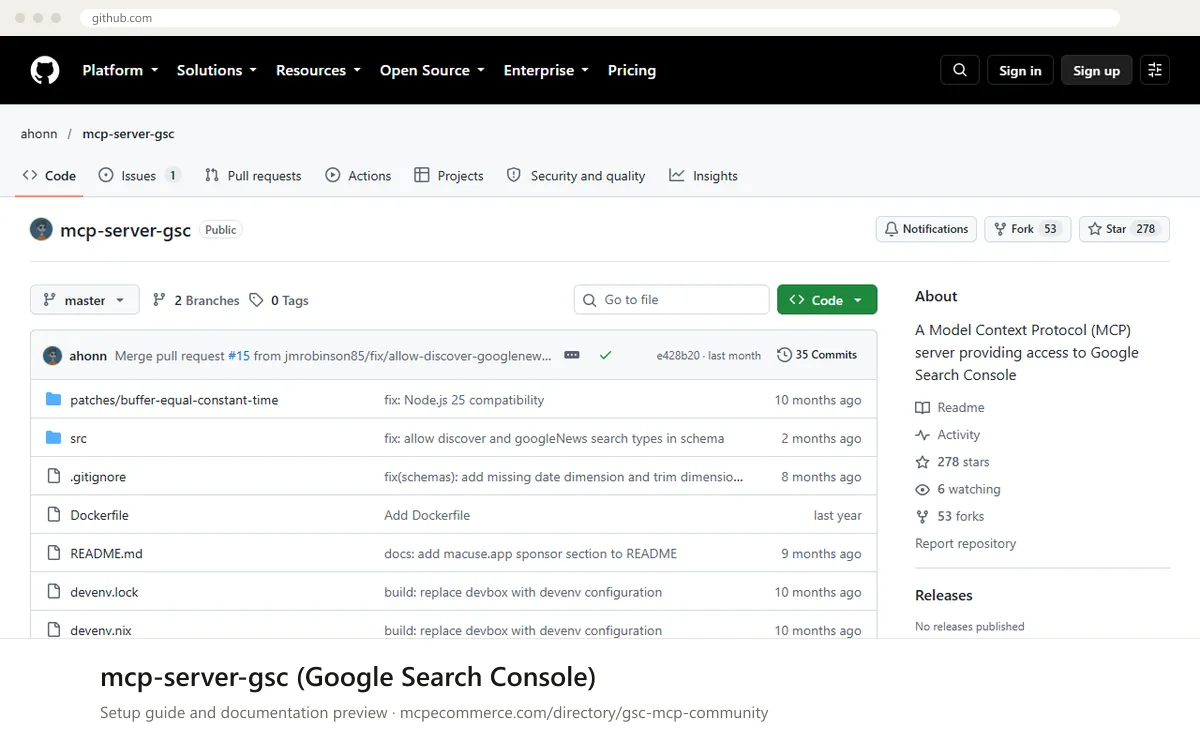
This is a local server. You run the `mcp-server-gsc` npm package on your own computer through `npx`, and it authenticates to Google with a service account JSON key referenced by the `GOOGLE_APPLICATION_CREDENTIALS` environment variable. There is no hosted URL and no browser sign-in. The server exposes one tool, `search_analytics`, and is read-only.
Have someone with Google Cloud project access and Search Console owner rights do the setup, ideally an SEO lead or agency developer. Use a dedicated service account, not a personal login. Keep the JSON key file private, because anyone holding it can read the data of every property the service account was added to. The project is community maintained, so review the repository before adopting it.
Before you start
Node.js18 or later on the computer that will run the server.- A Google Cloud project with the Search Console API enabled (
APIs & Services > Library). - A service account with a
JSONkey downloaded (APIs & Services > Credentials), stored in a private location, with its absolute path noted. - Permission in Search Console to add the service account email (
name@project.iam.gserviceaccount.com) to each property as a property administrator, as the docs describe. - The exact site URL of each property: a full URL such as
https://example.com/orsc-domain:example.comfor domain properties.
- How it runs
- Local, runs on your machine
- Access
- Read-only
- Server address
- Copy it from the vendor documentation
 mcp-server-gsc (Google Search Console) in Claude
- Complete the Google Cloud and Search Console setup first: enable the Search Console API, create a service account, download the
JSONkey, and add the service account email to each property as a property administrator. - Open the Claude Desktop configuration file (
claude_desktop_config.json), reachable from the Settings developer section. The docs do not give the file location, so use the standard one for your operating system. - Add the
gscentry undermcpServersas shown in the snippet, and replace/path/to/credentials.jsonwith the absolute path to your key file. - Save the file and fully restart Claude Desktop.
- Check that the
gscserver and itssearch_analyticstool are listed, then run a small test query.
{
"mcpServers": {
"gsc": {
"command": "npx",
"args": [
"-y",
"mcp-server-gsc"
],
"env": {
"GOOGLE_APPLICATION_CREDENTIALS": "/path/to/credentials.json"
}
}
}
} mcp-server-gsc (Google Search Console) in ChatGPT
- The documentation does not cover ChatGPT. This server runs locally over stdio, and ChatGPT custom connectors in Developer mode expect a remote MCP server URL.
- The repository mentions a remote server for Cloudflare Workers in its commit history, but the
READMEgives no URL or setup steps for it. Do not guess a URL. - If you want to use it with ChatGPT, you would need to host it yourself behind a remote MCP endpoint. Take the exact method from the vendor documentation or the repository source.
- For a supported path, use a client that can launch local commands, such as Claude Desktop, Cursor or Claude Code.
 mcp-server-gsc (Google Search Console) in Gemini
- The documentation does not cover Gemini. The standard approach for Gemini CLI is to add a local server under
mcpServersin its settingsJSONfile. - Complete the Google Cloud and Search Console setup first, and keep the
JSONkey path ready. - Add an
mcpServersentry namedgscwithcommandset tonpx,argsset to["-y", "mcp-server-gsc"], andenvcontainingGOOGLE_APPLICATION_CREDENTIALS. - Restart Gemini CLI and confirm the
gscserver is listed. - Run a small test query for one site and a short date range.
{
"mcpServers": {
"gsc": {
"command": "npx",
"args": [
"-y",
"mcp-server-gsc"
],
"env": {
"GOOGLE_APPLICATION_CREDENTIALS": "/path/to/credentials.json"
}
}
}
} mcp-server-gsc (Google Search Console) in Microsoft Copilot
- The documentation does not cover Microsoft Copilot Studio or GitHub Copilot. The steps below use the standard VS Code format for a local server.
- Complete the Google Cloud and Search Console setup first and note the absolute path to your
JSONkey. - In your workspace, create or open
.vscode/mcp.jsonand add agscentry underserversas shown in the snippet. - Replace
/path/to/credentials.jsonwith your key path, save, and start the server from the MCP tools list in VS Code. - Copilot Studio uses remote connectors and this server has no documented hosted URL, so it is not a documented fit.
{
"servers": {
"gsc": {
"command": "npx",
"args": [
"-y",
"mcp-server-gsc"
],
"env": {
"GOOGLE_APPLICATION_CREDENTIALS": "/path/to/credentials.json"
}
}
}
} mcp-server-gsc (Google Search Console) in Perplexity
- The documentation does not cover Perplexity.
- In the Perplexity desktop app, open the connectors or MCP settings and look for an option to add a local server by command. Availability depends on your app version and plan.
- If offered, enter
npxas the command,-y mcp-server-gscas the arguments, and setGOOGLE_APPLICATION_CREDENTIALSto the absolute path of yourJSONkey. - If the app only accepts remote URLs, this server is not a fit, because the documentation gives no hosted endpoint.
- Run a small test query after saving.
 mcp-server-gsc (Google Search Console) in Cursor
- Complete the Google Cloud and Search Console setup first and note the absolute path to your
JSONkey. - Open Cursor MCP settings, or edit the global
~/.cursor/mcp.jsonor a project.cursor/mcp.json. The docs do not give these paths, so confirm them in Cursor's documentation. - Add the
gscentry undermcpServersas shown in the snippet. - Replace
/path/to/credentials.jsonwith your key path and save. - Enable the server in Cursor's MCP settings and confirm
search_analyticsappears.
{
  "mcpServers": {
    "gsc": {
      "command": "npx",
      "args": [
        "-y",
        "mcp-server-gsc"
      ],
      "env": {
        "GOOGLE_APPLICATION_CREDENTIALS": "/path/to/credentials.json"
      }
    }
  }
}
mcp-server-gsc (Google Search Console) in Claude Code
- Complete the Google Cloud and Search Console setup first and note the absolute path to your
JSONkey. - Run the
claude mcp addcommand from the snippet in your terminal. The--envflag is a standard Claude Code option, not from the server docs. - Replace
/path/to/credentials.jsonwith your key path. - Run
claude mcp listto confirmgscis registered, or use/mcpinside a session. - Start with a small test query for one site.
claude mcp add gsc --env GOOGLE_APPLICATION_CREDENTIALS=/path/to/credentials.json -- npx -y mcp-server-gscCheck that it works
Start with questions that only read data. If these answer from your real account, the connection is good.
- Using the gsc server, run search_analytics for siteUrl `sc-domain:example.com` from 2024-01-01 to 2024-01-07 with dimensions `query` and rowLimit 10.
- Show the top 10 pages by clicks for `https://example.com/` over the last 7 days, using dimensions `page` and rowLimit 10.
- Run search_analytics for one site over a short date range with detectQuickWins enabled and the default quickWinsConfig, and list the first 10 results.
Troubleshooting
+Why do I get a permission or 403 error for a site?
The service account probably has not been added to that property. In Search Console, add the service account email (`name@project.iam.gserviceaccount.com`) as a property administrator, as the docs say, and repeat for each property. Also check that the Search Console API is enabled in the same Google Cloud project as the key.
+Why does the gsc server not appear in my client?
Check that the JSON is valid and the entry sits under `mcpServers` (or `servers` in VS Code). Confirm Node.js 18 or later and `npx` are on the PATH the client uses, then fully restart the client. Make sure `GOOGLE_APPLICATION_CREDENTIALS` points to an existing absolute file path.
+Why does a query return no data or an invalid site error?
Use the site URL exactly as it is registered in Search Console. The docs give `http://www.example.com/` style full URLs or `sc-domain:example.com` for domain properties. Dates must be `YYYY-MM-DD`. Very recent dates may have little data, and `dataState` defaults to `final`, so try `all` if you need fresher figures.
Written Oct 13, 2026 from the vendor documentation. Exact menus, addresses and commands change; the official documentation is the source of truth.