
Installation guide
How to install miniOrange MCP Server
In Claude, ChatGPT, Gemini, Microsoft Copilot, Perplexity, Cursor and Claude Code, with what to check before you start and the first prompts to run.
Connecting this server means installing the miniOrange MCP Server extension in your own Magento 2 or Adobe Commerce store, then pointing an MCP client at the MCP endpoint your store exposes. The documentation text we have does not give the endpoint URL, the Composer package name or the exact admin menu path, so take those from the vendor's Installation Guides linked on the Adobe Commerce Marketplace page. Authentication is a Magento integration token, or OAuth mapped to a Magento admin user (ChatGPT uses OAuth per the 3.0.0 release notes).
This is a job for a Magento developer or store administrator who can install extensions and create integrations in the Magento admin. Start on a staging store. Create a dedicated integration with read-only ACL resources first, and only grant write resources for supervised tasks. Write actions also require `confirm=true`.
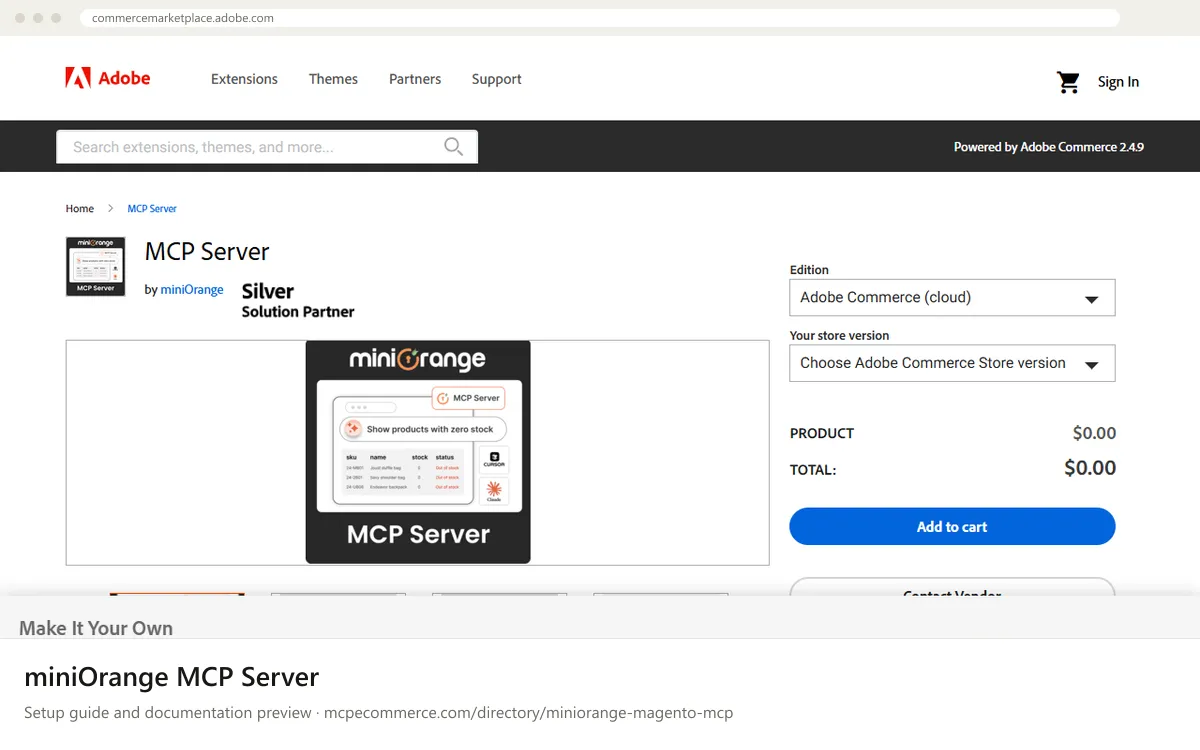
Before you start
- A Magento Open Source, Adobe Commerce on-prem or Adobe Commerce cloud store on 2.4, with the extension installed per the vendor's Installation Guides (current version listed: 3.0.0).
- Magento admin access that can create integrations (Integrations API tab) or manage User Roles, so you can issue a token with limited ACL resources.
- The MCP endpoint URL of your store, taken from the extension's configuration page in the Magento admin or from the vendor documentation.
- A staging store or non-production copy to test on before connecting a live store.
- Review of the licence terms (GPL-3.0 is listed) and of which actions the extension enables, since it is a commercial product.
- How it runs
- Local, runs on your machine
- Access
- Varies by tool
- Server address
- Copy it from the vendor documentation
 miniOrange MCP Server in Claude
- Install and configure the extension in Magento first, following the vendor's Installation Guides, and note your store's MCP endpoint URL.
- In the Magento admin, create an integration under the Integrations area and limit its ACL resources to read-only needs (for example Sales, Catalog, Inventory). Copy the access token.
- In Claude.ai or Claude Desktop, open
Settings > Connectorsand choose to add a custom connector by URL. - Enter your store's MCP endpoint URL. The docs do not state the exact URL format or how the token is passed, so take that from the vendor documentation.
- Complete the sign-in or token step as the vendor describes, then start a new chat and confirm the three tools
discover_abilities,get_ability_infoandexecute_abilityare listed.
 miniOrange MCP Server in ChatGPT
- Install and configure the extension in Magento first and note your store's MCP endpoint URL. The store must be reachable from the internet for ChatGPT.
- In ChatGPT, enable Developer mode in the connector settings and add a custom MCP connector.
- Paste your store's MCP endpoint URL as the server URL (take the exact value from the vendor documentation).
- Choose OAuth. Per the 3.0.0 release notes, Magento acts as the OAuth authorization server and shows an admin consent screen, then issues a token.
- Log in with a Magento admin user whose role has only the ACL resources you want, approve the consent screen, then confirm the three tools appear.
<YOUR_STORE_MCP_ENDPOINT_URL> miniOrange MCP Server in Gemini
- Install and configure the extension in Magento first and note your store's MCP endpoint URL and a read-only integration token.
- For Gemini CLI, open your settings
JSONfile and add an entry undermcpServers. - Use the
urlkey for the store endpoint. The docs do not state the header or auth format for the token, so take it from the vendor documentation. - Restart Gemini CLI and list MCP servers to confirm the server is connected.
- The docs name Google Gemini as compatible but do not describe Gemini app extensions, so use the CLI route unless the vendor says otherwise.
 miniOrange MCP Server in Microsoft Copilot
- Install and configure the extension in Magento first and note your store's MCP endpoint URL and a read-only integration token.
- For GitHub Copilot in VS Code, create or edit
.vscode/mcp.jsonwith a top-levelserversobject. - Add an entry with your store's MCP endpoint URL. Take the exact transport type and auth header format from the vendor documentation, as the docs do not give them.
- Keep the token out of the file, for example by using VS Code input prompts, and open the Copilot chat in agent mode to confirm the tools are listed.
- The docs name GitHub Copilot as compatible but do not cover Microsoft Copilot Studio. There, add a custom MCP tool or connector by URL using the standard Copilot Studio flow.
 miniOrange MCP Server in Perplexity
- Install and configure the extension in Magento first and note your store's MCP endpoint URL.
- The vendor docs do not mention Perplexity, so use the standard way to add a custom connector in the Perplexity desktop app: open its connectors settings and add a remote MCP server by URL.
- Enter your store's MCP endpoint URL, taken from the vendor documentation.
- Authenticate with the method the app offers, using a Magento integration token with read-only ACL resources.
- Confirm the app lists
discover_abilities,get_ability_infoandexecute_ability. If it does not support custom connectors, use another client.
 miniOrange MCP Server in Cursor
- Install and configure the extension in Magento first and note your store's MCP endpoint URL and a read-only integration token.
- Open Cursor MCP settings, or edit the MCP
JSONconfig file, to add a server undermcpServers. - Add an entry with the
urlkey set to your store's MCP endpoint. Take the exact auth header format from the vendor documentation. - Save, then check that the server shows as connected in the MCP settings with its three tools.
- Ask a read-only question first before enabling anything that writes.
miniOrange MCP Server in Claude Code
- Install and configure the extension in Magento first and note your store's MCP endpoint URL and a read-only integration token.
- Run
claude mcp add --transport http <name> <url>in a terminal, replacing<name>and<url>with your own label and the store's MCP endpoint. - Take any required token or header option from the vendor documentation, as the docs do not state how the token is passed.
- Run
claude mcp listto confirm the server is registered. - Start
claudeand confirmdiscover_abilities,get_ability_infoandexecute_abilityare available.
claude mcp add --transport http miniorange-magento <YOUR_STORE_MCP_ENDPOINT_URL>Check that it works
Start with questions that only read data. If these answer from your real account, the connection is good.
- Use discover_abilities to list the abilities available to this token, without running any of them.
- Show me pending orders from the last 7 days (read-only search, do not hold, cancel or email anything).
- Find products named shirt with stock below 10 and list their SKUs and quantities.
Troubleshooting
+Why does the client connect but show no abilities or return permission errors?
Admin abilities inherit the Magento ACL of the integration token or admin user. If a resource such as Sales or Catalog is not granted, those abilities fail. Check the Integrations API tab or User Roles in the Magento admin. Only three meta-tools are listed; use discover_abilities to see the rest.
+Why was my token rejected after it worked earlier?
Revoked, expired or deleted tokens are rejected on the next execute_ability call. Check the integration in the Magento admin and re-authorise it or issue a new token. For ChatGPT, repeat the OAuth login and admin consent screen. Also confirm the endpoint URL still matches your store.
+Why does a write action not run?
Write actions require confirm=true, so the assistant must pass it explicitly. The token's ACL must also allow the resource. Keep write access to supervised tasks on staging first. If it still fails, check the extension's agent logs in Magento or contact miniOrange support at magentosupport@xecurify.com.
Written Oct 13, 2026 from the vendor documentation. Exact menus, addresses and commands change; the official documentation is the source of truth.