
Installation guide
How to install OpenSEO MCP
In Claude, ChatGPT, Gemini, Microsoft Copilot, Perplexity, Cursor and Claude Code, with what to check before you start and the first prompts to run.
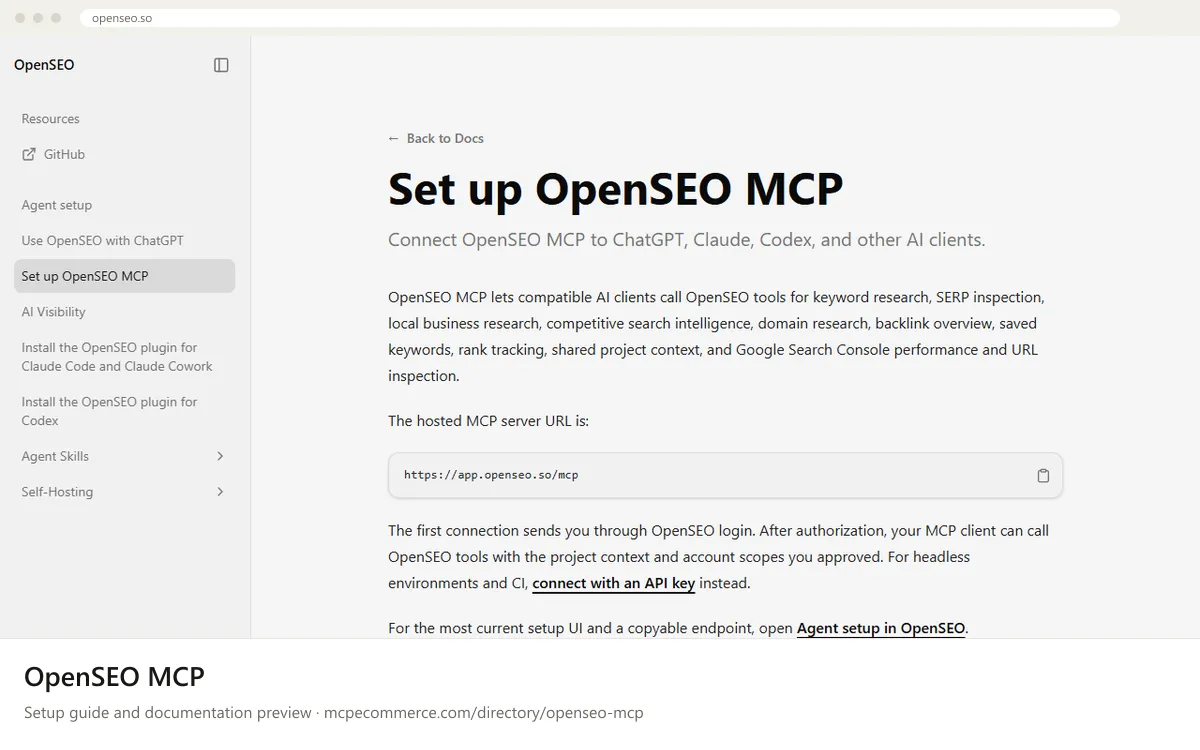
OpenSEO MCP is a hosted remote server at `https://app.openseo.so/mcp`. The first connection sends you through an OpenSEO login (OAuth), and the client then calls tools with the project context and account scopes you approved. For headless setups and CI, you can send a personal API key as a Bearer header instead.
Have the person who owns the SEO project in OpenSEO do this, using their own OpenSEO account. API keys are personal, so anything an agent does with a key acts as that user in their workspace. Start with read-only requests. Some AI research tools use credits, so only allow those under supervision.
Before you start
- An OpenSEO account with access to at least one project (the docs point to free SEO tools if you have no account yet).
- The server URL
https://app.openseo.so/mcp. The Agent setup page in the OpenSEO app has a copyable endpoint and current setup prompts. - For headless or CI use: an API key created under
Settings > API keysin OpenSEO. It is shown once, so copy it when it appears. - A supported client: Claude Desktop, Cursor, Claude Code, Codex CLI, or ChatGPT (see the OpenSEO ChatGPT setup guide).
- Awareness that AI research tools (for example prompt exploration and question research) use credits.
- How it runs
- Remote, added by URL
- Access
- Varies by tool
- Server address
https://app.openseo.so/mcp
 OpenSEO MCP in Claude
- On a paid Claude plan, the docs prefer the OpenSEO plugin, which installs MCP and the SEO skills together. Use the custom connector below for MCP only or on the Free plan.
- Open
Customize > Connectors. - Click
Add(or+), then chooseAdd custom connector. - Paste
https://app.openseo.so/mcp. - Approve the OpenSEO login when prompted.
- Note that Free plans support one custom connector.
https://app.openseo.so/mcp OpenSEO MCP in ChatGPT
- Follow the OpenSEO ChatGPT setup guide linked from the documentation. The docs say the custom connection works on Free and paid plans.
- Workspace permissions can limit access, so check with your workspace admin if the option is missing.
- Use
https://app.openseo.so/mcpas the server URL. - Alternatively, paste the setup prompt from Agent setup in OpenSEO into ChatGPT, which gives the same manual steps.
- Approve the OpenSEO login when prompted.
- Codex in the ChatGPT desktop app is a separate local connection, not ChatGPT web. See the vendor docs for its steps.
https://app.openseo.so/mcp OpenSEO MCP in Gemini
- The OpenSEO docs do not cover Gemini CLI or Gemini app extensions, so no vendor-specific steps exist.
- In Gemini CLI, the standard route is to add a remote server entry under
mcpServersin the Gemini settings file, using the URLhttps://app.openseo.so/mcp. Check the Gemini CLI documentation for the exact key name forHTTPservers. - If the OAuth login does not complete, the docs say any client that supports custom
HTTPheaders can sendAuthorization: Bearer oseo_YOUR_KEYorx-api-key: oseo_YOUR_KEY. - Create the key under
Settings > API keysin OpenSEO and store it outside version control. - Restart the client and run a read-only check such as listing your projects.
 OpenSEO MCP in Microsoft Copilot
- The OpenSEO docs do not cover Microsoft Copilot Studio or GitHub Copilot in VS Code, so these steps are the clients' standard approach, not vendor-verified.
- In VS Code, add a remote
HTTPserver in.vscode/mcp.jsonor through the MCP server command, using the URLhttps://app.openseo.so/mcp. - In Copilot Studio, add an MCP tool or custom connector that points to the same URL.
- If the client cannot complete OAuth, use an API key in an
Authorization: Bearer oseo_YOUR_KEYheader, if the client supports custom headers. - Confirm the tools appear, then run a read-only check.
 OpenSEO MCP in Perplexity
- The OpenSEO docs do not mention Perplexity, so there are no vendor steps for it.
- In the Perplexity desktop app, use its connector or custom MCP server option if your plan offers one, and enter
https://app.openseo.so/mcp. - Approve the OpenSEO login if the client prompts for it.
- If the client cannot do OAuth but supports custom headers, send
Authorization: Bearer oseo_YOUR_KEY. - Ask for a read-only project list to confirm the connection.
 OpenSEO MCP in Cursor
- Open
Cursor Settings > Tools & Integrations > MCP Tools. - Click
New MCP Server. Cursor opensmcp.json. - Add the
openseoentry shown in the snippet. - Save the file and approve the OpenSEO login when prompted.
- For headless use, add a
headersobject withAuthorization: Bearer oseo_YOUR_KEYto the same entry.
{
  "mcpServers": {
    "openseo": {
      "url": "https://app.openseo.so/mcp"
    }
  }
}
OpenSEO MCP in Claude Code
- The docs prefer the OpenSEO plugin for Claude Code, which installs MCP and the public SEO skills together. Use the command below only if you want MCP on its own.
- Run the command in the snippet.
--scope usermakes OpenSEO available across projects; use local scope for the current repository only. - Approve the OpenSEO login when prompted.
- For headless use, append
--header "Authorization: Bearer oseo_YOUR_KEY"to the same command. - Start a session and run a read-only check.
claude mcp add --transport http --scope user openseo https://app.openseo.so/mcpCheck that it works
Start with questions that only read data. If these answer from your real account, the connection is good.
- Use OpenSEO to check my connection and list my projects.
- For my first project, read the shared project context and list its saved keywords.
- Read the rank tracker configs and latest keyword positions for my project, without making any changes.
Troubleshooting
+My client cannot connect. What should I check first?
Check that the server URL is exactly `https://app.openseo.so/mcp`, with no extra characters or path. If it still fails, confirm the client supports remote HTTP MCP servers. The Agent setup page in OpenSEO also has a copyable endpoint and current setup prompts.
+Authorization fails or loops, or Codex reports a missing issuer. What now?
Disconnect the OpenSEO server in your client, add it again, and repeat the login. If Codex reports `Authorization server response missing required issuer: expected https://app.openseo.so`, upgrade Codex CLI or the desktop app to 0.147.0 or later. Versions 0.143 through 0.146 drop the issuer. An API key also works instead of OAuth.
+The agent says it cannot find a project. How do I fix that?
Ask the agent to list your OpenSEO projects first, then use the returned project ID in later tool calls. Also confirm you approved the right account during login. If you connected with an API key, remember it acts as the user who created it.
Written Oct 13, 2026 from the vendor documentation. Exact menus, addresses and commands change; the official documentation is the source of truth.