

Installation guide
How to install PayPal MCP Server
In Claude, ChatGPT, Gemini, Microsoft Copilot, Perplexity, Cursor and Claude Code, with what to check before you start and the first prompts to run.
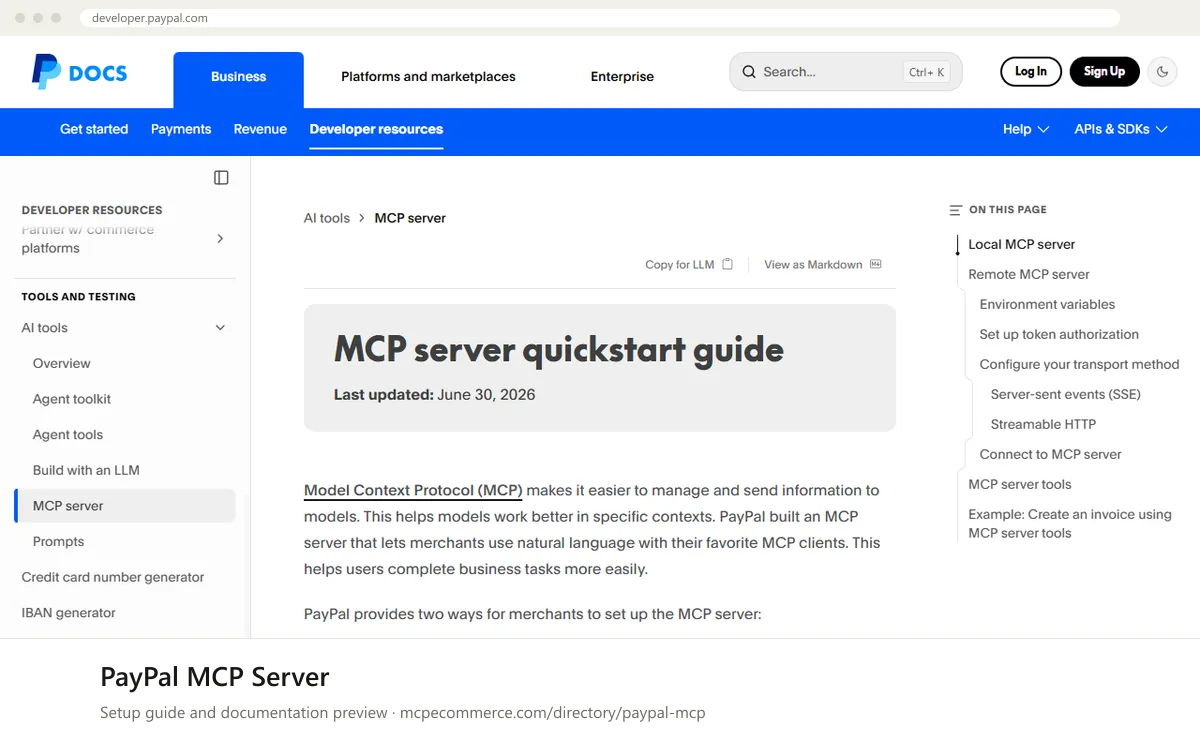
PayPal documents two ways to connect. The local option runs the `@paypal/mcp` npm package on your machine with Node.js v18 or later and a PayPal access token. The remote option uses PayPal's hosted endpoints through `mcp-remote`, and you sign in to PayPal and give consent in the browser. A token-based variant for remote uses your client ID and secret from the PayPal Developer Dashboard. Both give read and write access.
Have someone who owns the PayPal business account, or a developer acting for them, do the setup. Start with Sandbox only. Production credentials let the agent create real invoices and payments, so move to Production only after Sandbox tests pass, and keep write tasks supervised.
Before you start
- A PayPal account with access to the PayPal Developer Dashboard, plus Sandbox credentials for testing.
- For local:
Node.jsv18 or later and a PayPal access token (the docs do not say how to generate it, so use the vendor documentation and developer dashboard). - For remote:
npxavailable on the machine (the documented configs runnpx mcp-remote) and a browser to complete the PayPal login and consent. - An MCP client that can edit its MCP configuration file, such as Claude Desktop, Cursor or Cline (the docs name Claude, Cursor and Cline).
- A decision on transport for remote: server-sent events (
/sse) or streamableHTTP(/http).
- How it runs
- Remote or local
- Access
- Read and write
- Server address
https://mcp.sandbox.paypal.com
 PayPal MCP Server in Claude
- Decide between local and remote. The PayPal docs use Claude as their example client.
- Open the Claude Desktop MCP configuration file. The docs give
~/Claude/claude_desktop_config.jsonas the location. - For remote, paste the Sandbox entry from the snippet (streamable
HTTP). For SSE, usehttps://mcp.sandbox.paypal.com/sseinstead. For local, use the@paypal/mcpentry from the vendor docs, replaceYOUR_PAYPAL_ACCESS_TOKENand setPAYPAL_ENVIRONMENTtoSANDBOX. - Save the file and restart Claude Desktop. For remote, the PayPal login page opens. Log in and authorize the client, then quit and reopen Claude Desktop.
- Test with a read task, such as listing your PayPal invoices for the last month. The docs do not describe adding PayPal through the Claude.ai Connectors screen, so use the config file.
{
"mcpServers": {
"paypal-mcp-server": {
"command": "npx",
"args": [
"mcp-remote",
"https://mcp.sandbox.paypal.com/http"
]
}
}
} PayPal MCP Server in ChatGPT
- The PayPal docs do not cover ChatGPT. They only show configs for clients that launch
npxcommands, so check that your ChatGPT plan and workspace allow custom MCP connectors. - In ChatGPT, enable Developer mode in the connector settings and choose the option to add a custom MCP connector by URL.
- If you try the hosted server, use a Sandbox URL from the vendor documentation, such as
https://mcp.sandbox.paypal.com/sseorhttps://mcp.sandbox.paypal.com/http. Do not use the Production URL yet. - Complete the PayPal login and consent if prompted. If ChatGPT cannot authenticate, use a client that the docs describe instead.
- Test with a read-only request, such as listing invoices from the last month.
 PayPal MCP Server in Gemini
- The PayPal docs do not mention Gemini. Use the standard Gemini CLI approach: add an entry under
mcpServersin the Gemini CLI settings file. - Paste the Sandbox
mcp-remoteentry from the snippet. For SSE, change the URL tohttps://mcp.sandbox.paypal.com/sse. - Save the settings and restart Gemini CLI.
- Complete the PayPal login and consent in the browser, then quit and reopen the CLI.
- Test with a read task such as listing PayPal invoices from the last month. Gemini app extensions are not covered by the docs.
{
"mcpServers": {
"paypal-mcp-server": {
"command": "npx",
"args": [
"mcp-remote",
"https://mcp.sandbox.paypal.com/http"
]
}
}
} PayPal MCP Server in Microsoft Copilot
- The PayPal docs do not cover Copilot. For GitHub Copilot in VS Code, add the server to
.vscode/mcp.jsonunder a top-levelserversobject. - Use the Sandbox
mcp-remotecommand from the snippet. For SSE, usehttps://mcp.sandbox.paypal.com/sse. - Save the file and start the server from VS Code, then complete the PayPal login and consent in the browser.
- Restart VS Code if the tools do not appear.
- For Microsoft Copilot Studio, use its custom connector or MCP tool flow. The docs give no steps for it, so confirm the endpoint and auth with PayPal first. Test with a read-only prompt.
{
"servers": {
"paypal-mcp-server": {
"command": "npx",
"args": [
"mcp-remote",
"https://mcp.sandbox.paypal.com/http"
]
}
}
} PayPal MCP Server in Perplexity
- The PayPal docs do not cover Perplexity. Use the connectors area of the Perplexity desktop app and its standard way of adding a custom MCP server.
- Local servers need a command, so use
npxwith themcp-remotearguments and the Sandbox URLhttps://mcp.sandbox.paypal.com/http(or/sse). - Check the Perplexity documentation for whether your plan supports local command connectors.
- Log in to PayPal and authorize when prompted, then restart the app.
- Test with a read-only request such as listing invoices from the last month.
 PayPal MCP Server in Cursor
- Open Cursor's MCP settings and edit the MCP configuration file (the docs name Cursor as a usable client).
- Paste the Sandbox entry from the snippet. For SSE, change the URL to
https://mcp.sandbox.paypal.com/sse. - Save the file and restart Cursor. The PayPal login page opens. Log in and authorize the client, then quit and reopen Cursor.
- Test with a read task such as listing your PayPal invoices for the last month.
- The docs mention a known issue for Windows users connecting to the remote server from Cursor. If it fails there, try the local option or follow the vendor documentation.
{
  "mcpServers": {
    "paypal-mcp-server": {
      "command": "npx",
      "args": [
        "mcp-remote",
        "https://mcp.sandbox.paypal.com/http"
      ]
    }
  }
}
PayPal MCP Server in Claude Code
- Make sure
Node.jsv18 or later andnpxare installed. - Run the command from the snippet in your terminal to add the Sandbox remote server over streamable
HTTP. For SSE, usehttps://mcp.sandbox.paypal.com/sse. - The docs do not show Claude Code specifically. For the local
@paypal/mcppackage, the docs expectPAYPAL_ACCESS_TOKENandPAYPAL_ENVIRONMENTas environment values, so set them as the vendor documentation describes. - Start Claude Code. When the PayPal login page opens, log in and authorize the client, then restart Claude Code.
- Test with a read task such as listing PayPal invoices from the last month.
claude mcp add paypal-mcp-server -- npx mcp-remote https://mcp.sandbox.paypal.com/httpCheck that it works
Start with questions that only read data. If these answer from your real account, the connection is good.
- List my PayPal invoices from the last month.
- Show the status of my most recent PayPal invoice.
- Which PayPal environment are you connected to, Sandbox or Production?
Troubleshooting
+The remote connection fails or loops back to the PayPal login. What should I try?
The docs suggest clearing the files the integration stores in `~/.mcp-auth` by running `rm -rf ~/.mcp-auth`. Then restart your MCP client and sign in again. Make sure you authorized the client on the PayPal consent screen, and quit and reopen the client afterwards.
+The PayPal tools do not appear in my client. What should I check?
Confirm the configuration file saved correctly and that you fully restarted the client. For local, check that Node.js v18 or later is installed and that `PAYPAL_ACCESS_TOKEN` is replaced with a real token. For remote, check that the URL matches your chosen transport, `/sse` or `/http`.
+Why do I get errors or no data in Sandbox?
The Sandbox endpoint `https://mcp.sandbox.paypal.com` must be used with Sandbox credentials, and `PAYPAL_ENVIRONMENT` must be `SANDBOX` for local. Mixing Production credentials with Sandbox, or the reverse, will fail. Also note the docs warn that Windows users on Cursor may hit a known remote issue.
Written Oct 13, 2026 from the vendor documentation. Exact menus, addresses and commands change; the official documentation is the source of truth.