
Installation guide
How to install Pipedrive MCP Server
In Claude, ChatGPT, Gemini, Microsoft Copilot, Perplexity, Cursor and Claude Code, with what to check before you start and the first prompts to run.
The Pipedrive MCP server is hosted by Pipedrive and added to your AI assistant through a secure OAuth login. There is nothing to install locally and no API key to create. The documentation page does not print the server URL in the text we have, so copy it from the official Pipedrive MCP documentation and not from third-party sources, since many unofficial Pipedrive MCP servers exist.
A Pipedrive admin or a sales operations owner should do the first connection. Sign in with a Pipedrive user whose permissions match what the assistant should see and change. The assistant can only access data that user can already view and edit, and actions are recorded in the Pipedrive change log. Use a restricted user for the first trial and start with read-only requests.
Before you start
- A Pipedrive account. The vendor says the MCP server is available on every plan.
- A Pipedrive user whose permissions match the access you want to give the assistant, ideally a restricted user for the first trial.
- The official Pipedrive MCP server URL, copied from the Pipedrive MCP documentation (
https://www.pipedrive.com/en/features/mcp-serverlinks to it). - An AI assistant that supports custom MCP connections. Pipedrive provides setup guides for ChatGPT and Claude.
- Awareness that usage is limited by plan-based token allowances. Additional tokens can be purchased.
- How it runs
- Remote, added by URL
- Access
- Read and write
- Server address
- Copy it from the vendor documentation
 Pipedrive MCP Server in Claude
- Open
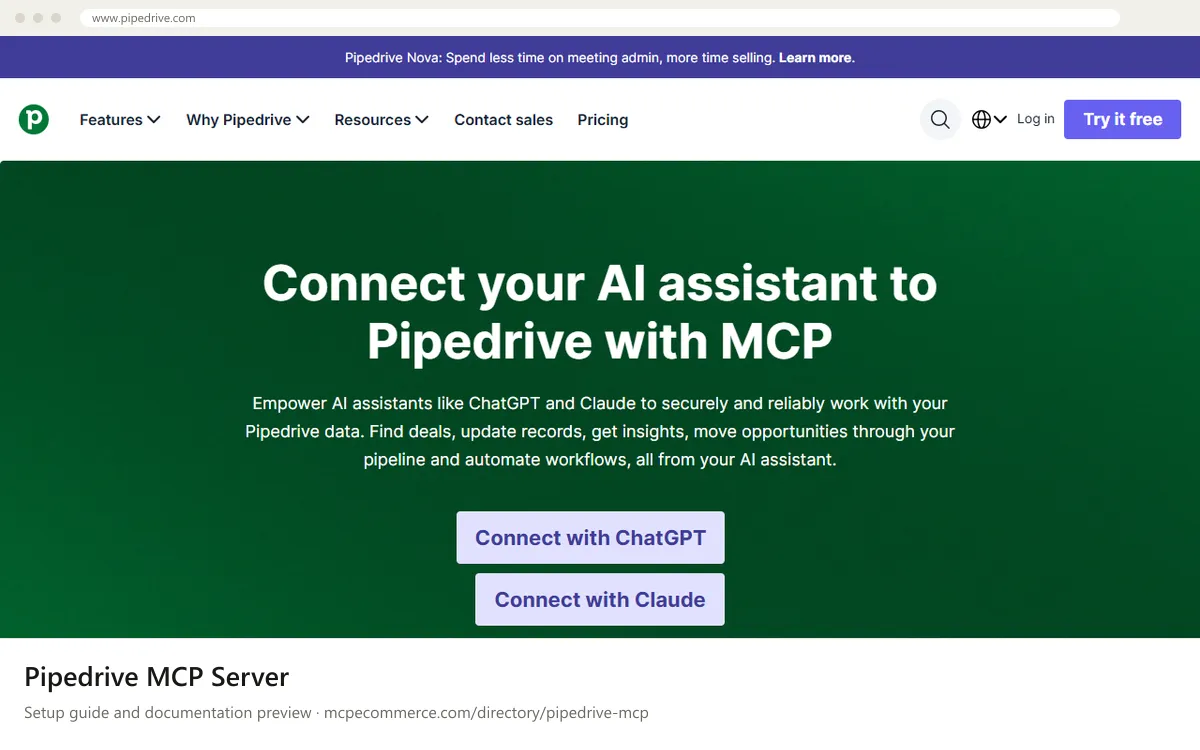
https://www.pipedrive.com/en/features/mcp-serverand selectConnect with Claude, or follow the Claude steps in the Pipedrive MCP documentation. - If you add it manually, open
Settings > Connectorsin Claude.ai or the Claude Desktop app and choose the option to add a custom connector by URL. - Paste the Pipedrive MCP server URL exactly as shown in the vendor documentation.
- Complete the Pipedrive OAuth login when prompted, using the user you chose for the trial.
- Confirm the connector shows as connected, then enable it in a new chat.
- Start with read-only requests and check the Pipedrive change log before trying any create or update request.
 Pipedrive MCP Server in ChatGPT
- Open
https://www.pipedrive.com/en/features/mcp-serverand selectConnect with ChatGPT, then follow the vendor steps in the Pipedrive MCP documentation. - If you add it manually, enable Developer mode in ChatGPT settings, which is the route for custom MCP connectors. Check your plan and workspace rules, since admins may control this.
- Create a new connector and paste the Pipedrive MCP server URL from the vendor documentation.
- Complete the Pipedrive OAuth login when prompted.
- Enable the connector in a new chat and begin with read-only questions such as searching deals.
 Pipedrive MCP Server in Gemini
- The Pipedrive documentation does not cover Gemini. It says other assistants that support custom MCP connections can connect using the Pipedrive MCP server URL.
- For Gemini CLI, add a remote entry under
mcpServersin your Gemini settings file. Check the Gemini CLI documentation for the exact key that holds a remote URL. - Use the Pipedrive MCP server URL copied from the vendor documentation as the value.
- Restart Gemini CLI and complete the Pipedrive OAuth login if prompted. Whether your Gemini version handles this OAuth flow is not covered by the Pipedrive docs.
- Run a read-only request to confirm the connection.
 Pipedrive MCP Server in Microsoft Copilot
- The Pipedrive documentation does not cover Microsoft Copilot Studio or GitHub Copilot. It only says assistants with custom MCP connection support can use the server URL.
- For GitHub Copilot in VS Code, add a remote server entry to
.vscode/mcp.jsonunderservers, using the Pipedrive MCP server URL from the vendor documentation. - For Copilot Studio, add an MCP tool or custom connector through the standard flow and enter the same URL.
- Complete the Pipedrive OAuth login when prompted. Whether each Copilot client supports this flow is not stated in the Pipedrive docs.
- Test with a read-only prompt before enabling any write use.
 Pipedrive MCP Server in Perplexity
- The Pipedrive documentation does not cover Perplexity.
- In the Perplexity desktop app, open the connectors settings and look for the option to add a custom or remote MCP connector. The name and availability depend on your plan and app version.
- Paste the Pipedrive MCP server URL copied from the vendor documentation.
- Complete the Pipedrive OAuth login when prompted.
- Run a read-only search to confirm the connection works.
 Pipedrive MCP Server in Cursor
- The Pipedrive documentation does not cover Cursor. It says assistants with custom MCP connection support can use the server URL.
- Open the Cursor MCP settings and add a new MCP server, or edit your
mcp.jsonfile. - Add an entry under
mcpServerswith aurlfield set to the Pipedrive MCP server URL from the vendor documentation. - Save the file and complete the Pipedrive OAuth login when Cursor prompts you. OAuth support in your Cursor version is not covered by the Pipedrive docs.
- Confirm the server shows its tools in Cursor, then try a read-only request.
Pipedrive MCP Server in Claude Code
- The Pipedrive documentation does not cover Claude Code. It says assistants with custom MCP connections can use the server URL.
- In a terminal, run
claude mcp add --transport http pipedrive <PIPEDRIVE_MCP_URL>, replacing the placeholder with the official URL from the vendor documentation. - Start
claudeand run/mcpto see the server status and start the OAuth sign-in if needed. - Complete the Pipedrive OAuth login in the browser, using the user you chose for the trial.
- Test with a read-only prompt, then check the Pipedrive change log.
claude mcp add --transport http pipedrive <PIPEDRIVE_MCP_URL>Check that it works
Start with questions that only read data. If these answer from your real account, the connection is good.
- Search my Pipedrive deals for open deals over $10K that have not been updated in two weeks. Do not change anything.
- Summarize my current sales pipeline by stage and list the deals most likely to close this month.
- Find the contact Sarah Lee by name and show the full record, read-only.
Troubleshooting
+The OAuth login completes but the assistant sees no data or returns permission errors. What should I check?
The assistant only has the permissions of the Pipedrive user who signed in. Confirm that user can view the deals, contacts or leads in the Pipedrive web app. If the permission set is too narrow, adjust it in Pipedrive or sign in with a different user, then reconnect.
+I hit usage limits or requests stop working. Why?
Pipedrive says MCP usage is subject to token limits based on your plan, and additional tokens can be purchased. Check your usage in Pipedrive and the vendor documentation. Narrower prompts, such as one pipeline or a short date range, can also reduce consumption.
+How do I know I connected the official server and not an unofficial one?
Many unofficial Pipedrive MCP servers exist. Copy the server URL only from the Pipedrive MCP documentation, reached from the official Pipedrive MCP page. Avoid third-party packages or URLs from forums. After connecting, make a change in a test record and confirm it appears in the Pipedrive change log.
Written Oct 13, 2026 from the vendor documentation. Exact menus, addresses and commands change; the official documentation is the source of truth.