

Advertising · 7 min read
Email and CRM
Pipedrive launched a native MCP server in June 2026 for all plans. Through OAuth, AI assistants can search deals, contacts, organizations and leads, create and update records, convert leads and generate pipeline insights, with actions logged in the change log.
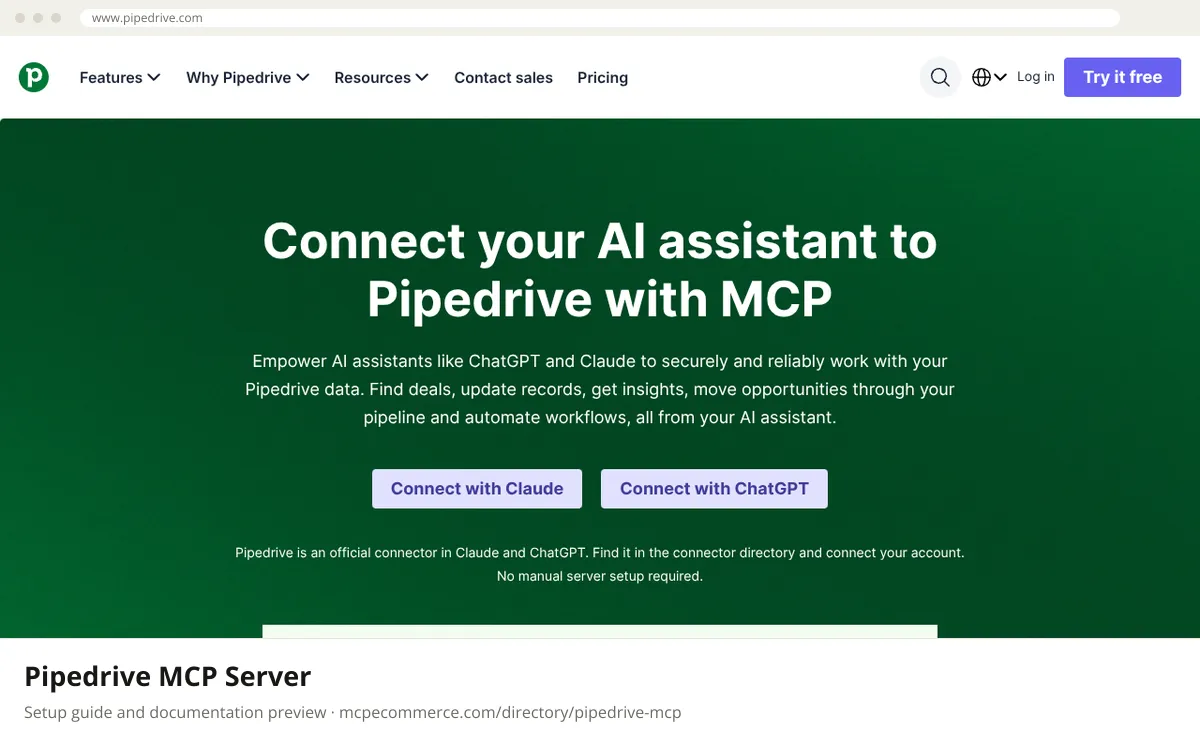
The Pipedrive MCP Server is the official connector from Pipedrive that lets an AI assistant such as Claude or ChatGPT work with your live CRM data. It can search deals, contacts, organizations and leads, create and update records, convert leads to deals, schedule activities and follow-ups, and produce pipeline insights. It is hosted by Pipedrive, connects through an OAuth login, and, as described in the documentation, is available on all plans.
It suits agencies and B2B ecommerce sellers who already run their pipeline in Pipedrive and want to ask questions or log work in plain language instead of clicking through screens. Results depend on three things: how clean your CRM data is, which Pipedrive user you connect as (the assistant only sees and edits what that user can), and your plan's token allowance, which limits usage. Because the server can write as well as read, start with questions and reports before you let it change records.
Agencies and B2B ecommerce sellers who run their pipeline in Pipedrive.
Exact commands and addresses change. Use the official documentation for the current steps.
Installation guide for Pipedrive MCP Server
Client-by-client steps, what to prepare, the first prompts to run and fixes for common errors.
 Claude
 ChatGPT
 Gemini
 Microsoft Copilot
 Perplexity
 CursorClaude Code
Watch out for: Usage is capped by plan-based token allowances and many unofficial Pipedrive MCP servers exist, so make sure you connect the official one.
According to the documentation, it is available on all Pipedrive plans with no separate fee listed. Usage is limited by token allowances included in your plan, and additional tokens can be purchased if you need more. Check your plan details with Pipedrive for exact amounts.
Pipedrive lists official connectors for Claude and ChatGPT in their connector directories. Any other assistant that supports custom MCP connections can connect using the Pipedrive MCP server URL, as described in the Pipedrive MCP documentation. Follow the vendor's setup guide for your assistant.
Step-by-step: install Pipedrive MCP Server in Claude, ChatGPT, Gemini, Copilot and more →
No. The assistant can only access and modify data that the Pipedrive user you connected is already allowed to view and edit. All actions are recorded in the change log. Your AI provider's own privacy and security policies also apply to the data it processes.
Questions readers and searchers ask about Pipedrive MCP Server, answered by the site editor from the vendor documentation, plus reader experience. Every comment is reviewed before it appears.
Advertising · 7 min read

Advertising · 7 min read
 Varies by tool
Klaviyo · Email and CRM
Klaviyo's MCP server connects an assistant to email and SMS marketing data: campaigns, flows, profiles and reporting.
View details →
 Varies by tool
HubSpot · Email and CRM
HubSpot's MCP server gives an assistant access to CRM records, useful for B2B e-commerce and agency pipelines.
View details →
Omnisend · Email and CRM
Omnisend's hosted MCP server exposes the whole Omnisend API through four meta tools (search, tool_schema, tool_documentation, execute) with OAuth and a selectable read-only or write access level.
View details →