
Installation guide
How to install Saleor MCP
In Claude, ChatGPT, Gemini, Microsoft Copilot, Perplexity, Cursor and Claude Code, with what to check before you start and the first prompts to run.
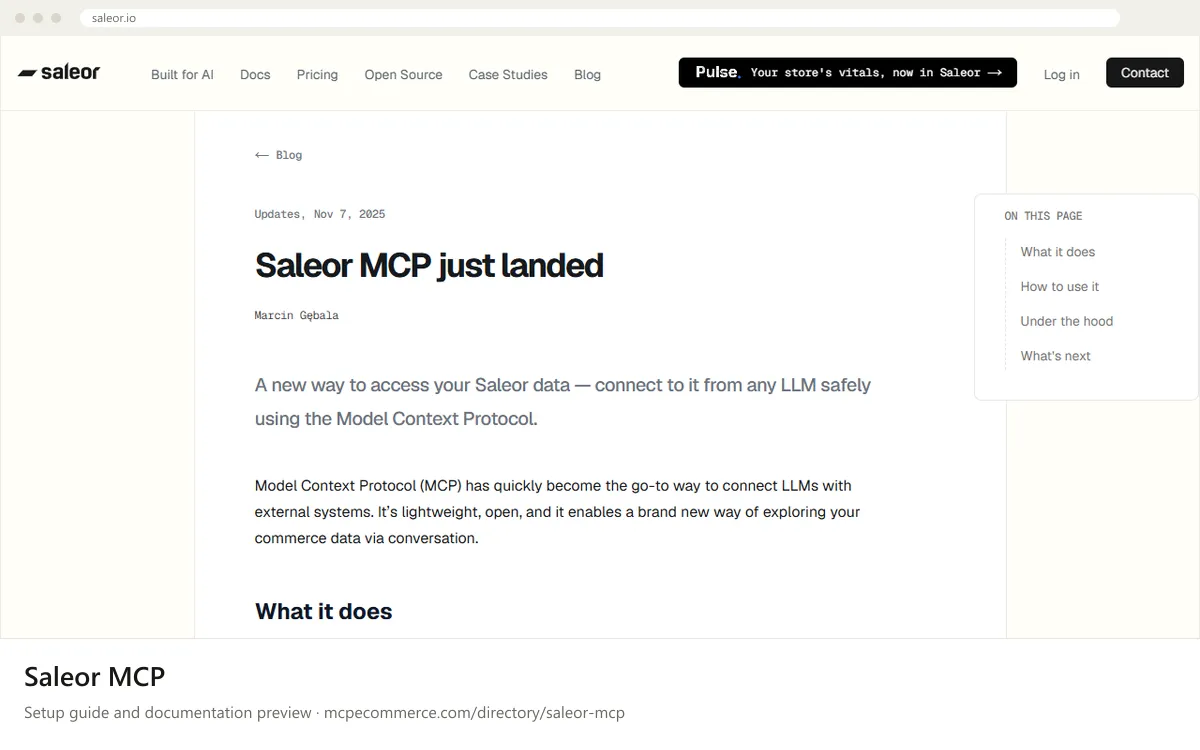
Saleor MCP is a read-only server that exposes channels, orders, products and inventory. Saleor hosts a public version at `https://mcp.saleor.app/` for Saleor Cloud environments (`*.saleor.cloud`). There is no OAuth sign-in. You create an app in the Dashboard and pass its token, plus your GraphQL API address, as two HTTP headers. Self-hosters run the open-source `saleor/saleor-mcp` code from GitHub and should follow that repository's instructions.
A Saleor Dashboard admin should do this, because creating an app with `MANAGE_ORDERS` and `MANAGE_PRODUCTS` permissions needs sufficient rights. Use a dedicated app named `Saleor MCP`, not a personal account. The vendor describes this as an early first iteration, so treat the token as sensitive and check answers against the Dashboard.
Before you start
- A Saleor Cloud environment on a
*.saleor.clouddomain (for the hosted server), or a self-hosted Saleor plus thesaleor/saleor-mcprepository from GitHub - Dashboard access that allows creating an app under
ExtensionswithMANAGE_ORDERSandMANAGE_PRODUCTSpermissions - The GraphQL API URL of your instance, in the form
https://example.saleor.cloud/graphql/ - A password manager to store the generated app token
- An MCP client that supports Streamable
HTTPand custom request headers
- How it runs
- Remote or local
- Access
- Read-only
- Server address
https://mcp.saleor.app/mcp
 Saleor MCP in Claude
- The vendor docs do not cover Claude.ai or Claude Desktop. Use the client's standard custom connector flow and check whether it allows custom headers.
- Create the app in the Saleor Dashboard first:
Extensions>Add extension>Provide details manually, name itSaleor MCP, assignMANAGE_ORDERSandMANAGE_PRODUCTS, and copy the token. - Open
Settings > Connectorsand add a custom connector with the URLhttps://mcp.saleor.app/mcp. - Saleor MCP needs the headers
X-Saleor-API-URLandX-Saleor-Auth-Token. If the connector form has no field for custom headers, it cannot authenticate to this server. Take the exact workaround from Anthropic's documentation. - Run one of the read-only prompts below and compare the result with the Dashboard.
 Saleor MCP in ChatGPT
- The vendor docs do not cover ChatGPT. Use ChatGPT's standard way of adding a custom MCP connector (Developer mode) by URL.
- Create the Saleor app and copy its token as described in the prerequisites.
- In ChatGPT, enable Developer mode and add a new connector with the URL
https://mcp.saleor.app/mcp. - The server requires
X-Saleor-API-URLandX-Saleor-Auth-Tokenheaders. Check whether the connector form supports custom headers. If it only offers OAuth or no authentication, it will not work with this server today. - If headers are supported, enter both values, then start a chat with the connector enabled and run a read-only prompt.
 Saleor MCP in Gemini
- The vendor docs do not cover Gemini. For Gemini CLI, the standard route is an
mcpServersentry in the settings file. - Create the Saleor app and copy its token.
- Add an entry for the remote server using the URL
https://mcp.saleor.app/mcp. Check the Gemini CLI documentation for the exact key names for StreamableHTTPand for custom headers. - Set
X-Saleor-API-URLto your GraphQL URL andX-Saleor-Auth-Tokento the token. Avoid committing the settings file to version control. - Restart Gemini CLI, confirm the server is listed, and run a read-only prompt.
 Saleor MCP in Microsoft Copilot
- The vendor docs show an example
mcp.jsonfor Copilot. For GitHub Copilot in VS Code, put it in.vscode/mcp.json. - Create the Saleor app (
MANAGE_ORDERS,MANAGE_PRODUCTS) and copy the token. - Add the
saleor-mcpserver withtypeset tohttp, the URLhttps://mcp.saleor.app/mcp, and the two headers, as in the snippet. - Replace the placeholder values with your token and your
https://<store>.saleor.cloud/graphql/URL. Do not commit the file with a real token. - Start the server from the MCP view in VS Code and confirm the tools are listed.
- For Microsoft Copilot Studio, the docs do not cover it. Use its custom MCP tool flow and check that it can send custom headers.
{
"servers": {
"saleor-mcp": {
"type": "http",
"url": "https://mcp.saleor.app/mcp",
"headers": {
"X-Saleor-Auth-Token": "<YOUR_APP_TOKEN>",
"X-Saleor-API-URL": "https://example.saleor.cloud/graphql/"
}
}
}
} Saleor MCP in Perplexity
- The vendor docs do not cover Perplexity. Use the connector settings in the desktop app to add a remote MCP server by URL.
- Create the Saleor app and copy its token.
- Add a connector with the URL
https://mcp.saleor.app/mcp. - The server needs
X-Saleor-API-URLandX-Saleor-Auth-Tokenheaders. If the connector UI has no place for custom headers, it cannot authenticate to this server. Check Perplexity's documentation for current support. - If it connects, run a read-only prompt and verify the answer in the Dashboard.
 Saleor MCP in Cursor
- The vendor docs do not cover Cursor. Use Cursor's standard MCP settings, which read an
mcpServersJSONconfig. - Create the Saleor app and copy its token.
- Open Cursor's MCP settings and add a server entry with the
urlhttps://mcp.saleor.app/mcpand aheadersobject. - Set
X-Saleor-API-URLandX-Saleor-Auth-Tokenas in the snippet. Confirm the exactheaderskey in Cursor's documentation. - Reload Cursor, check the server shows as connected with its tools, then run a read-only prompt.
{
  "mcpServers": {
    "saleor-mcp": {
      "url": "https://mcp.saleor.app/mcp",
      "headers": {
        "X-Saleor-Auth-Token": "<YOUR_APP_TOKEN>",
        "X-Saleor-API-URL": "https://example.saleor.cloud/graphql/"
      }
    }
  }
}
Saleor MCP in Claude Code
- The vendor docs do not cover Claude Code. It adds remote servers with
claude mcp add --transport http. - Create the Saleor app and copy its token.
- Run the command in the snippet with your token and GraphQL URL. The
--headerflag is Claude Code's standard way to send headers; confirm it in Claude Code's documentation if your version differs. - Run
claude mcp listto confirmsaleor-mcpis registered. - Start a session and run a read-only prompt.
claude mcp add --transport http saleor-mcp https://mcp.saleor.app/mcp \
  --header "X-Saleor-API-URL: https://example.saleor.cloud/graphql/" \
  --header "X-Saleor-Auth-Token: <YOUR_APP_TOKEN>"
Check that it works
Start with questions that only read data. If these answer from your real account, the connection is good.
- Which products are running low on stock?
- Which of my recent orders need attention or action?
- List the channels configured in my store.
Troubleshooting
+The server rejects my connection or returns an authorization error. What should I check?
Confirm both headers are present and spelled exactly `X-Saleor-API-URL` and `X-Saleor-Auth-Token`. Check that the token belongs to an app with `MANAGE_ORDERS` and `MANAGE_PRODUCTS`, that it was copied in full, and that the API URL is your GraphQL address ending in `/graphql/`.
+Can I use the hosted server with my self-hosted Saleor?
No. The hosted version at `https://mcp.saleor.app/mcp` only allows `*.saleor.cloud` domains. For self-hosted Saleor, run the open-source `saleor/saleor-mcp` repository from GitHub yourself and follow its instructions, then point your client at your own deployment.
+My client has no field for custom headers. Is there another way?
The docs describe header-based tokens only. OAuth and other auth flows are listed as planned, not available. If your client cannot send custom headers, use a client that can, such as VS Code with `mcp.json`, or check that client's documentation for a header option.
Written Oct 13, 2026 from the vendor documentation. Exact menus, addresses and commands change; the official documentation is the source of truth.