

Installation guide
How to install Semrush MCP
In Claude, ChatGPT, Gemini, Microsoft Copilot, Perplexity, Cursor and Claude Code, with what to check before you start and the first prompts to run.
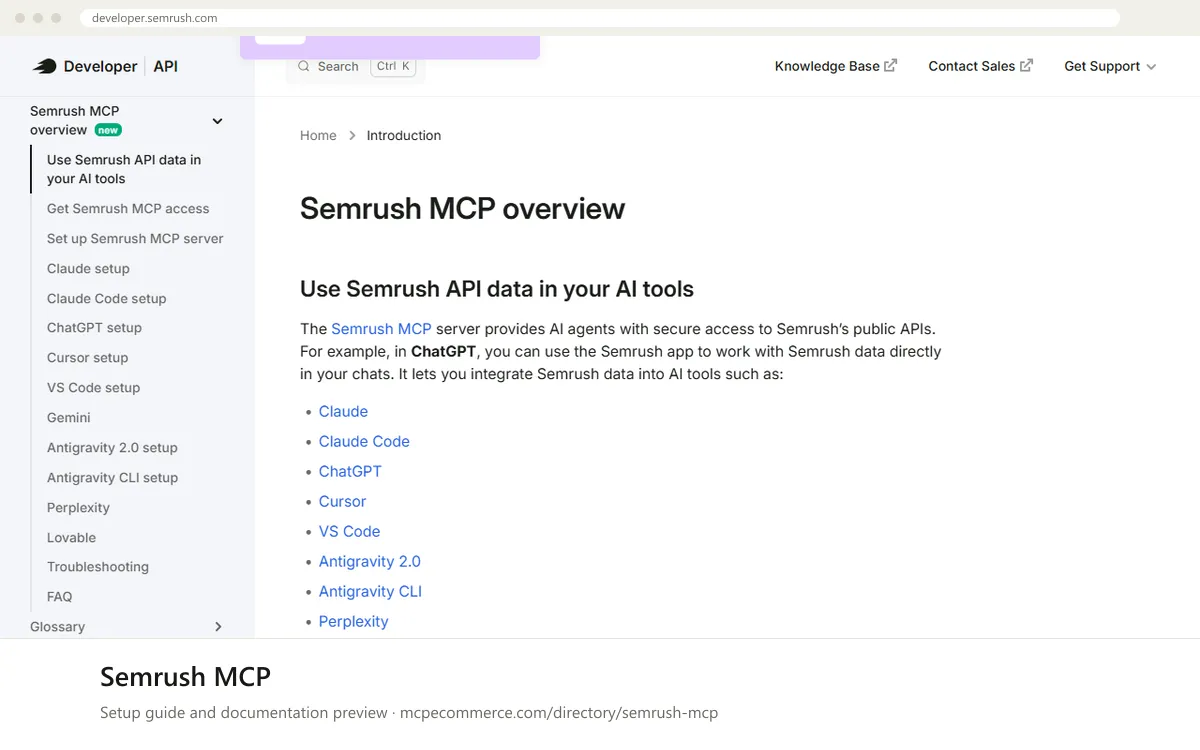
Semrush MCP is a vendor-hosted remote server using Streamable HTTP only, so there is nothing to install locally. Claude, ChatGPT and Perplexity offer Semrush as an official app: you connect it from the app list and approve access on a Semrush permission screen. Developer tools such as Claude Code, Cursor, VS Code and Antigravity take the endpoint in a command or config file, and OAuth 2.1 sign-in starts automatically. If a tool cannot do OAuth, the docs say to send your API key in the `Authorization` header instead. Every request uses API units, the same as the Semrush API.
Have the person who owns the Semrush subscription, or a technical colleague acting for them, do the connection. Sign in with the Semrush account that holds your API units, because usage is billed there. The server exposes the SEO API, the Trends API (depending on your subscription) and read-only Projects API methods, so it cannot create projects or change settings. Start with read-only questions and keep an eye on your unit balance.
Before you start
- An eligible Semrush plan per the docs: Semrush One Starter, Semrush One Pro+, SEO Classic Pro or SEO Classic Guru (50,000 API units included), SEO Classic Business or Semrush One Advanced with an API units package, or any Trends API plan (Basic or Premium) for traffic and market data.
- Login to the Semrush account that holds the API units, with permission to approve access on the OAuth permission screen.
- An AI tool from the vendor's supported list: Claude, Claude Code, ChatGPT, Cursor, VS Code, Antigravity 2.0, Antigravity CLI, Perplexity or Lovable. Perplexity needs a paid account.
- For any other AI tool, a request to Semrush Support, because the docs say each request is reviewed individually.
- Only if your tool lacks OAuth support: your Semrush API key, found through the Get API key guide in the vendor docs.
- How it runs
- Remote, added by URL
- Access
- Read-only
- Server address
https://mcp.semrush.com/v2/mcp
 Semrush MCP in Claude
- Open Claude (web or the desktop app) and go to
Customize > Connect your apps. - Search for
Semrush, select the app and clickConnect. - On the Semrush permission screen, sign in with the Semrush account that holds your API units, review the access details and click
Approve. - Confirm that Semrush now appears in the
Connectorslist. - In a chat, tag the app as
@Semrushand ask your question. The docs say there are no extra Claude fees, only Semrush API unit usage.
 Semrush MCP in ChatGPT
- In ChatGPT, go to
Account > Settings > Apps. - Find and select
Semrush, then clickConnect. - In the modal, click
Continue. You are redirected to a Semrush permission screen. - Sign in with the Semrush account that holds your API units, review the access details and click
Approve. - In a chat, tag the app directly as
@Semrush. The docs say there are no extra ChatGPT fees, only Semrush API unit usage.
 Semrush MCP in Gemini
- The docs state that Gemini CLI support is discontinued, as Google is moving Gemini CLI to Antigravity CLI. The docs do not describe a Gemini app extension, so use Antigravity 2.0 or Antigravity CLI instead.
- In Antigravity, go to
Settings > Customizations, and in the MCP servers section clickOpen MCP Config. This opens~/.gemini/config/mcp_config.json, which the desktop app, IDE and Antigravity CLI share. - Add the
semrushentry withserverUrlset tohttps://mcp.semrush.com/v2/mcpand save the file. - Back in
Customizations, click the refresh button inInstalled MCP servers, then clickAuthenticatenext tosemrush. - In the browser window, log in to Semrush, review the access details and click
Approve. If Antigravity shows an authorization code, paste it into the settings panel and clickSubmit. - For CLI only: run
agy, then/mcp, selectsemrush, chooseAuthenticate, open the URL shown, approve, and paste the authorization code into the terminal.
{
"mcpServers": {
"semrush": {
"serverUrl": "https://mcp.semrush.com/v2/mcp"
}
}
} Semrush MCP in Microsoft Copilot
- The docs cover VS Code only, not Microsoft Copilot Studio. For Copilot Studio, use its standard way of adding an MCP server by URL with the endpoint
https://mcp.semrush.com/v2/mcp, and check the Copilot Studio documentation for its authentication options. - For GitHub Copilot in VS Code, create a
.vscode/mcp.jsonfile in your workspace. - Add the configuration below and save the file.
- Start the server from VS Code when prompted. The docs say the OAuth 2.1 flow redirects you to the Semrush login page when needed.
- Sign in to Semrush, approve access, then ask a small read-only question to test.
{
"servers": {
"semrush": {
"url": "https://mcp.semrush.com/v2/mcp",
"type": "http"
}
}
} Semrush MCP in Perplexity
- Make sure you are on a paid Perplexity account, which the docs require to add and activate the Semrush app.
- Open Perplexity and go to
Customize > Connectors. - Find and select
Semrush, then clickAdd connector. - On the permission screen, sign in to Semrush with the account that holds your API units, review the access details and click
Continue. - Check that Semrush appears in the
Connectorslist. The docs say there are no extra Perplexity fees, only Semrush API unit usage.
 Semrush MCP in Cursor
- Open
Settings > Cursor Settings > Tools & MCP. - Add the Semrush entry to your Cursor MCP settings (the
mcpServersJSON) using the snippet below. - Save and let Cursor load the server. The docs say OAuth 2.1 sign-in redirects you to the Semrush login page automatically.
- Log in to Semrush with the account that holds your API units and approve access.
- Ask a small read-only question to confirm the tools respond.
{
  "mcpServers": {
    "semrush": {
      "url": "https://mcp.semrush.com/v2/mcp"
    }
  }
}
Semrush MCP in Claude Code
- In a terminal, run the command below to add the remote
HTTPserver. - Open Claude Code and run
/mcp. - Select the Semrush MCP entry from the list of MCP integrations.
- Select
Authenticate. OAuth 2.1 redirects you to the Semrush login page. - Sign in with the Semrush account that holds your API units, approve access, then run a small read-only test question.
claude mcp add semrush https://mcp.semrush.com/v2/mcp -t httpCheck that it works
Start with questions that only read data. If these answer from your real account, the connection is good.
- List the Semrush MCP tools available to you, without running any report.
- Show the top 5 organic keywords for example.com in the US database, limited to 5 rows.
- List the projects in my Semrush account, read-only, then tell me how many API units that request is expected to use.
Troubleshooting
+Why does the sign-in or authentication step fail or loop?
Confirm you are signing in to the Semrush account that holds your API units and that it is on an eligible plan. In Claude Code, rerun `/mcp`, select Semrush and choose `Authenticate` again. In Antigravity, paste the authorization code back into the panel or terminal if one is shown. If the tool cannot do OAuth, use the API key header.
+How do I connect a tool that does not support OAuth?
The docs say you can pass your API key in the `Authorization` header in the format `Authorization: Apikey YOUR_API_KEY`. Find the key through the Get API key guide for Version 4 or Version 3. Where you set the header depends on your client, so check that client's documentation for remote MCP headers.
+Why are requests failing, returning no data, or the AI tool I use is not listed?
Check your API unit balance and plan, since every request consumes units, and Trends data depends on your Trends API subscription. The server is read-only, so write actions on projects will not work. For tools outside the vendor's supported list, the docs say to contact Semrush Support, which reviews each request individually.
Written Oct 13, 2026 from the vendor documentation. Exact menus, addresses and commands change; the official documentation is the source of truth.