

Installation guide
How to install Square MCP Server
In Claude, ChatGPT, Gemini, Microsoft Copilot, Perplexity, Cursor and Claude Code, with what to check before you start and the first prompts to run.
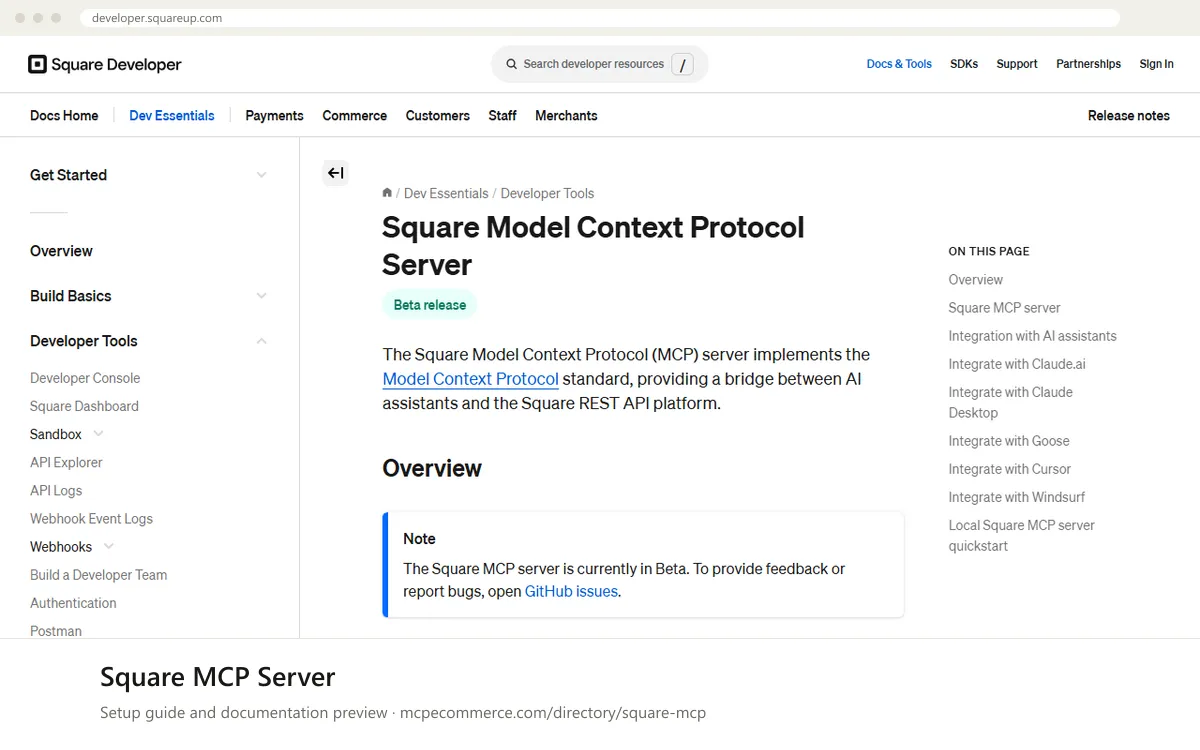
Square offers two routes. The remote server is hosted by Block at `https://mcp.squareup.com/mcp` and uses OAuth sign-in with your Square account, so there are no access tokens to manage. The local server runs on your machine with `npx square-mcp-server start` and needs Node.js and a Square access token. Square recommends the remote server, but it only reaches production data. The local server can be pointed at Sandbox. The server is in beta.
A Square account owner or an admin who can authorize apps should do the connection, using the Square account whose data the assistant will see. Agency developers should start with the local server in Sandbox and `DISALLOW_WRITES=true`, then move to the remote server once the prompts behave. Square keeps an allowlist of MCP clients, so a client that is not listed may fail at the OAuth step.
Before you start
- A Square account, with permission to authorize access to the data you want the assistant to read (the remote server works on production only).
- For the local route:
Node.jsinstalled, plus a Square access token. Square describes this under Access Tokens in its developer docs. Use a Sandbox token for first tests. - For Claude.ai: an owner or primary owner on Teams or Enterprise, or a Claude Max account.
- A client from Square's documented list (Claude.ai, Claude Desktop, Goose, Cursor, Windsurf), or a plan to request an allowlist addition in the Square developer forum.
- A decision on scopes: approve only what you need on the OAuth screen.
- How it runs
- Remote or local
- Access
- Read and write
- Server address
https://mcp.squareup.com/mcp
 Square MCP Server in Claude
- Claude.ai (web), Teams: open
Settings > Integrations. Enterprise: openSettings > Data management. Claude Max: openSettings > Profile, then go to the Integrations section. Teams and Enterprise need an owner or primary owner. - Choose
Add more, enterhttps://mcp.squareup.com/mcp, and chooseAdd. - Open a chat, use the
Search and toolsmenu, and chooseConnect. Sign in to Square and approve only the scopes you need. Then enable the specific Square tools you want from the same menu. - Claude Desktop (remote): add the entry shown below to
claude_desktop_config.json, then restart the app. Themcp-remotehelper opens the OAuth sign-in with your Square account. - Claude Desktop (local, for Sandbox testing): use the
commandnpxwithargs["square-mcp-server", "start"]and anenvblock holdingACCESS_TOKEN,SANDBOXset totrue, andDISALLOW_WRITESset totruefor read-only. The docs showACCESS_TOKENandSANDBOX.DISALLOW_WRITEScomes from the variable table.
{
"mcpServers": {
"mcp_square_api": {
"command": "npx",
"args": [
"mcp-remote",
"https://mcp.squareup.com/mcp"
]
}
}
} Square MCP Server in ChatGPT
- Square's documentation does not cover ChatGPT, and ChatGPT is not in its list of supported assistants. Check whether your client is on Square's allowlist before you start.
- In ChatGPT, enable Developer mode in the connector settings, where your plan allows it, and add a custom MCP connector.
- Enter
https://mcp.squareup.com/mcpas the server URL and choose OAuth if asked for an authentication type. - Complete the Square sign-in and approve only the scopes you need. If the sign-in is rejected, the client is probably not on the allowlist.
- To request an addition, post in the Square developer forum as the documentation describes.
https://mcp.squareup.com/mcp Square MCP Server in Gemini
- Square's documentation does not cover Gemini CLI or Gemini app extensions. The steps here use the standard way of adding an MCP server to Gemini CLI.
- For the local route, open the Gemini CLI settings file and add an entry under
mcpServerswithcommandset tonpxandargsset to["square-mcp-server", "start"]. - Add an
envblock withACCESS_TOKEN(a Sandbox token),SANDBOXset totrueandDISALLOW_WRITESset totrue. - For the remote route, Square documents
npx mcp-remote https://mcp.squareup.com/mcpas the command for other clients. Whether Gemini is on the OAuth allowlist is not stated. - Restart Gemini CLI and confirm the Square tools are listed before running prompts.
 Square MCP Server in Microsoft Copilot
- Square's documentation does not cover Microsoft Copilot Studio or GitHub Copilot in VS Code. The steps here use each product's standard way of adding an MCP server.
- GitHub Copilot in VS Code: add a server to
.vscode/mcp.json. For the local route usenpxwithsquare-mcp-server start. SetACCESS_TOKEN,SANDBOX=trueandDISALLOW_WRITES=truein the server's environment. - Remote route in VS Code: the documented command is
npx mcp-remote https://mcp.squareup.com/mcp. Whether the client passes Square's OAuth allowlist is not stated. - Copilot Studio: add an MCP tool or custom connector and enter
https://mcp.squareup.com/mcpas the server URL. Take any further fields from Microsoft's documentation. - Test with read-only prompts first. If sign-in is rejected, ask for an allowlist addition in the Square developer forum.
 Square MCP Server in Perplexity
- Square's documentation does not cover Perplexity, and it is not in Square's list of supported assistants.
- In the Perplexity desktop app, open the connectors settings and choose the option to add a custom or remote MCP connector. Menu names vary by version.
- Enter
https://mcp.squareup.com/mcpas the server URL. - Sign in to Square when prompted and approve only the scopes you need.
- If sign-in is rejected, the client is likely not on Square's allowlist. Request an addition in the Square developer forum.
https://mcp.squareup.com/mcp Square MCP Server in Cursor
- Open Cursor's MCP settings and add a new MCP server.
- Choose
Type: "Command". - For the remote server (recommended, uses OAuth), enter the command shown below in the Command field.
- Complete the Square sign-in in the browser and approve only the scopes you need.
- For the local server instead, enter
npx square-mcp-server startin the Command field. ProvideACCESS_TOKEN,SANDBOXandDISALLOW_WRITESas environment variables. The docs do not show where Cursor takes them, so use Cursor's env setting for MCP servers. - Check that the Square tools appear as enabled in the MCP settings list.
npx mcp-remote https://mcp.squareup.com/mcpSquare MCP Server in Claude Code
- Square's documentation does not cover Claude Code. The steps here use the standard
claude mcp addform with values taken from the Square docs. - Safest first test, local and read-only against Sandbox: run the command shown below with your Sandbox token.
- For the remote route, the documented helper is
npx mcp-remote https://mcp.squareup.com/mcp. Add it withclaude mcp add square-remote -- npx mcp-remote https://mcp.squareup.com/mcp. Whether Claude Code is on Square's OAuth allowlist is not stated. - Run
claude mcp listto confirm the server is registered, then startclaudeand check the Square tools are available. - If the OAuth sign-in is rejected, request an allowlist addition in the Square developer forum.
claude mcp add square -e ACCESS_TOKEN=<YOUR_SANDBOX_ACCESS_TOKEN> -e SANDBOX=true -e DISALLOW_WRITES=true -- npx square-mcp-server startCheck that it works
Start with questions that only read data. If these answer from your real account, the connection is good.
- List the first five customers in my Square account. Show names only and make no changes.
- Show the catalog items in my Square account with their names and prices. Read only.
- List my five most recent orders with their status and total. Do not create or change anything.
Troubleshooting
+The Square sign-in is rejected or never completes. What should I check?
Square keeps an allowlist of MCP clients to block malicious client registrations. If your client is not on it, OAuth can fail. Try a documented client such as Claude.ai, Claude Desktop, Cursor or Windsurf. To get yours added, request it in the Square developer forum, as the documentation describes.
+The local server starts but returns Sandbox data, or none at all. Why?
Check the environment variables. `SANDBOX=true` selects Sandbox and `PRODUCTION=true` selects production. `ACCESS_TOKEN` must match the environment, so a Sandbox token only works with Sandbox. Also confirm Node.js is installed and that `npx square-mcp-server start` runs from a terminal.
+Can I make the connection read-only, and why did a write go through?
Locally, writes are on unless you set `DISALLOW_WRITES=true`. The remote server runs on production only, and the docs show no read-only switch for it. Approve only the scopes you need on the OAuth screen, and enable only specific tools in Claude. Test in Sandbox first.
Written Oct 13, 2026 from the vendor documentation. Exact menus, addresses and commands change; the official documentation is the source of truth.